The PromptsRush journal
TutorialsHow to Caption, Chapter and Repurpose YouTube Videos With AI
Turn one long YouTube video into accurate captions, valid chapters, Shorts, a blog post and social posts. A step-by-step AI workflow with Whisper, ElevenLabs Scribe, Descript and OpusClip, plus three copy-ready prompts.
Advertisement
Short version: one long YouTube video should leave your desk as five things, not one: an accurate caption file, clean chapters, a handful of Shorts, a blog post and a week of social posts. AI handles most of the grunt work today, and the whole system runs on a single asset you probably already have: the transcript. Get the transcript right first, and captions, chapters, clips and written content all fall out of it.
This tutorial walks through that workflow step by step, using YouTube's own rules for captions, chapters and Shorts, plus the tools that do each job well: Whisper or ElevenLabs Scribe for transcription, Descript for editing and captions, OpusClip for automated clipping, and any capable chat model for the writing. If you're still choosing tools for producing the video itself, this morning's guide to the best AI video stack covers the creation side; this post picks up after you hit publish.
Sources: YouTube Help Center pages plus the pricing pages and docs for Descript, ElevenLabs, OpusClip and Whisper, all checked on October 28, 2026. We haven't benchmarked these tools against each other, so every limit and price comes from the vendors, and every cost example is our own arithmetic.
What You'll Get From One Long Video
For a single 20 to 40-minute talking-head, tutorial or interview video, the workflow produces:
- A corrected caption track uploaded to YouTube as an SRT or VTT file, instead of relying on raw automatic captions.
- Chapters in the description that meet YouTube's formatting rules, so viewers can jump to the part they need.
- 3 to 8 Shorts cut from the strongest moments, each with burned-in captions and a title.
- A blog post, a newsletter issue and a set of social posts written from the transcript, so the same ideas reach people who never open YouTube.
- Optional translations: subtitle tracks or dubbed audio for viewers in other languages.
None of this needs an editor on payroll, just a repeatable order of operations, three copy-ready prompts (below) and a careful human review of each output.
How the AI Repurposing Workflow Works
The workflow runs in four stages: transcribe, caption, chapter, clip, with written content branching off the transcript at the end. Transcription produces a timestamped text file. Captions are that same file, cleaned up and split into readable lines. Chapters come from reading the transcript for topic changes. Clips come from finding the moments in the transcript that stand on their own. Every downstream job reads the transcript, so its accuracy decides the quality of everything else.
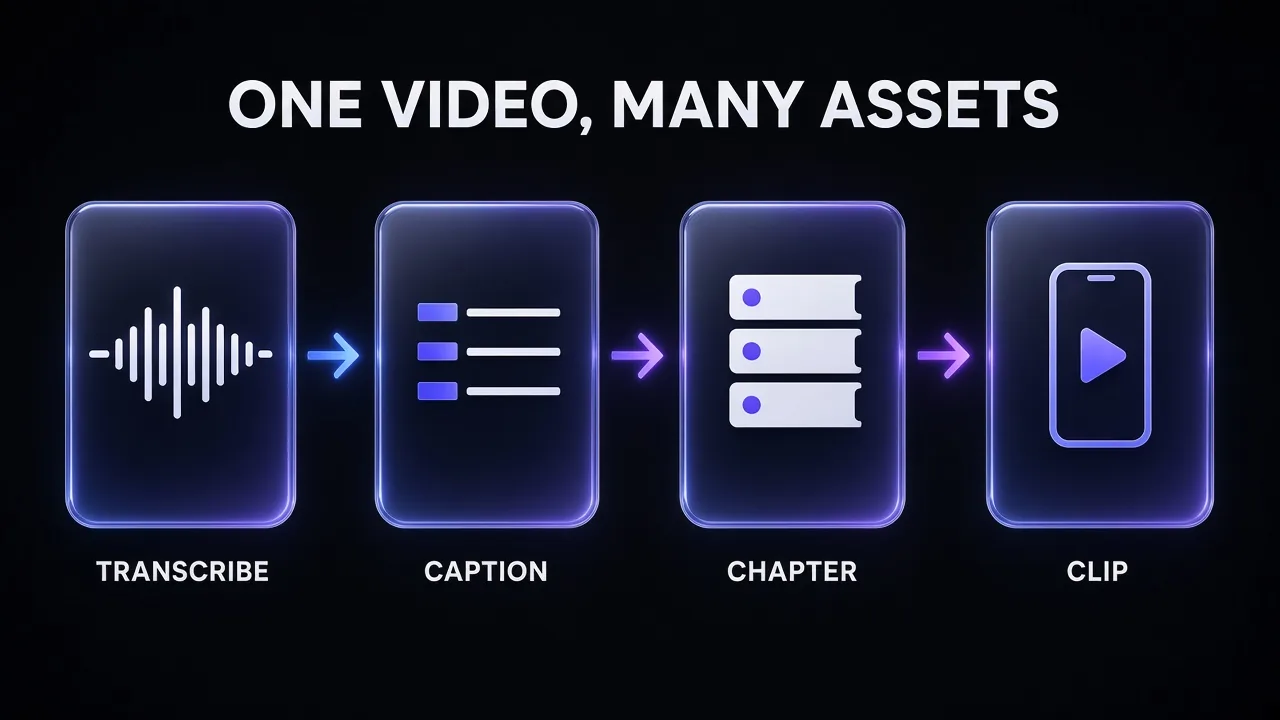
That's why the order matters. Fix a misheard product name once at the source and every asset inherits the fix. Our recommended setup keeps one "master transcript" per video next to its caption file, chapter list and clip notes.
Pro tip: Keep a short glossary of names, brands and jargon you say often. Descript calls this a transcription glossary, and ElevenLabs Scribe supports keyterm prompting with up to 1,000 terms. Either way, feeding the tool your vocabulary up front prevents the most common caption errors.
Step 1: Get an Accurate, Timestamped Transcript
You have four realistic options:
YouTube's automatic captions (free, zero setup). YouTube generates captions with speech recognition in more than 60 languages, including English, Hindi, Tamil, Telugu, Bengali, Spanish and Japanese. English auto captions also support "expressive captions" that show intensity in all caps and label sighs, gasps and background noise. The catch, in YouTube's own words: quality "may vary", creators should add professional captions first, and auto captions should always be reviewed. They can also fail to appear on very long videos, poor audio, a long silence at the start or overlapping speakers.
OpenAI Whisper (free, local, technical). Whisper is open source, with code and model weights under the MIT licence. It runs on your own machine, needs ffmpeg installed, and writes output straight to srt, vtt, txt, tsv or json. The default turbo model needs about 6 GB of VRAM. A single command gets you a caption file:
whisper my-video.mp4 --model turbo --output_format srt
Whisper is the best fit if you're comfortable in a terminal or already use Claude Code; our guide to editing videos with Claude shows how to wire Whisper into a full transcript-driven edit.
ElevenLabs Scribe (cheap, API or browser). Scribe v2 transcribes 90+ languages with word-level timestamps, labels up to 32 speakers and tags audio events like laughter or applause. It accepts video files directly, up to 3 GB and 10 hours. Its "no verbatim" mode strips filler words and false starts, which ElevenLabs describes as suited to subtitles. Through the API it costs $0.22 per hour of audio, so a 30-minute video costs about 11 cents to transcribe. In the ElevenLabs app, the free plan includes 12 minutes of Scribe a month, Starter ($6 a month) includes 1 hour 31 minutes and Creator ($22 a month) 6 hours 7 minutes. Our ElevenLabs pricing guide explains which plan fits which workload.
Descript (transcript and editor in one). Descript transcribes on import in 25 languages, detects multiple speakers and turns the transcript into the editing surface: delete a sentence in the text and it's cut from the video. If you're going to edit in Descript anyway, its transcript is the obvious master copy.
Whichever you choose, do one human pass before moving on: fix names, numbers, product terms and anything clearly misheard. It's the highest-leverage step in the workflow.
Step 2: Turn the Transcript Into Captions YouTube Accepts
A caption file is a transcript with timing. YouTube supports a long list of formats, but its Help Center recommends two for beginners: SubRip (.srt) and SubViewer (.sbv). Both must be plain UTF-8, and YouTube ignores any style markup in them. If you need positioning, WebVTT (.vtt) is supported, with styling limited to bold, italic and underline.
Whisper writes SRT or VTT from the command line, and Descript exports both with options for speaker labels, characters per line and lines per card. Our recommendation: keep each caption card to one or two short lines.
To add the file in YouTube Studio:
- Open YouTube Studio and select Subtitles from the left menu.
- Choose the video, click Add language and pick the spoken language.
- Under Subtitles, click Add, then Upload file.
- Choose With timing for an SRT or VTT file, select the file and save.
If you only have plain text, YouTube's Auto-sync option will time a pasted transcript for you, but the transcript must be in the same language as the speech, and YouTube says it isn't recommended for videos over an hour long or with poor audio. For long videos, upload a timed file instead.
Already published with automatic captions? You can fix them in place. In Studio's Subtitles page, choose Duplicate and edit on the automatic track; YouTube creates a new caption track with your revisions, and you can also adjust the timing of each line.
Soft vs burned-in captions. The SRT you upload is a soft track viewers can toggle, ideal for long-form accessibility and translations. Shorts and social clips need captions burned into the picture for sound-off viewing; Descript's dynamic captions (unlimited on every plan, including free) and OpusClip's animated captions handle that.
Step 3: Add Chapters That YouTube Will Actually Show
Chapters split a video into labelled sections on the progress bar. YouTube can generate automatic chapters (the "Allow automatic chapters" box is checked by default on new uploads), but not every video is eligible and you don't control the titles. Writing your own takes two minutes with AI and overrides the automatic version.
YouTube's rules for manual chapters are strict, and a chapter list that breaks any of them simply won't display:
- The first timestamp must be 00:00.
- You need at least three timestamps, listed in ascending order.
- Each chapter must be at least 10 seconds long.
- The list goes in the video description, one timestamp and title per line.
The fastest method is to hand a timestamped transcript to a chat model with the rules spelled out. Descript also has a built-in "Add chapters" tool if you edit there. This prompt bakes YouTube's rules into the instructions so the output pastes straight into the description:
YouTube Chapters From a Transcript
You are a YouTube editor. Create chapters for my video from the timestamped transcript below.

Rules (YouTube will not show chapters that break them):
- The first line must start at 00:00.
- At least 3 chapters, at most [MAX CHAPTERS], in ascending order.
- Every chapter must be at least 10 seconds long; aim for 1 to 4 minutes each.
- Start each chapter where a new topic actually begins, not mid-sentence.
- Titles: 2 to 6 words, specific, front-load the keyword a viewer would search. No clickbait, no emojis.
- Use MM:SS for videos under an hour and H:MM:SS for longer ones.

Output only the chapter list, one per line, in the format:
00:00 Title

Then, separately, list any section where you were unsure about the topic boundary.

Video title: [VIDEO TITLE]
Transcript:
[PASTE TIMESTAMPED TRANSCRIPT]
Check the timestamps against the video before pasting, and name the 00:00 chapter after what the viewer gets rather than "Introduction". For more prompts that work on titles, hooks and descriptions, see our YouTube prompts for scripts, hooks and titles.
Step 4: Cut Shorts From the Long Video
Shorts are where a long video finds new viewers. YouTube's current rules: any video uploaded since October 15, 2024 with a square or vertical aspect ratio and a length of up to three minutes is classified as a Short. In YouTube Studio you can upload up to 15 short videos at a time. You have three ways to make them.
1. YouTube's built-in "Edit into a Short". On the watch page of one of your own public long-form videos, tap Remix, then Edit into a Short, and select up to 60 seconds. The Short links back to the original video automatically, which is a nice free traffic path. It works only on your public videos without third-party copyright claims, and the video must allow Shorts sampling ("Allow people to sample this content" in Studio). Good for one clip, not a system.
2. OpusClip (automated clipping). OpusClip scans a long video, picks candidate clips, ranks them with a "Virality Score", reframes them to vertical, adds animated captions and can post them to YouTube Shorts, TikTok and Instagram Reels. Its plans bill in credits, where 1 credit is 1 minute of video processed:
- Free: 60 credits a month, watermarked clips up to 1080p, no editing, and clips stay exportable for only 3 days.
- Starter ($15 a month, monthly only): 150 credits, no watermark, animated captions in 20+ languages, filler and silence removal, auto-posting.
- Pro ($29 a month, or $14.50 a month billed $174 yearly): 300 credits that roll over for two months, multiple aspect ratios (9:16, 1:1, 16:9), a social scheduler and export to Premiere Pro and DaVinci Resolve.
In practice, 300 credits covers about ten 30-minute videos a month; Starter covers about five.
3. Descript (clips you edit with text). Descript's Create Clips tool picks highlight moments from the transcript and turns them into clips you refine by deleting text, applying a caption style and switching to vertical. It's slower than OpusClip's batch, but you get full control in one project. Create Clips is included from the Hobbyist plan; our Descript review covers how the editor feels in day-to-day use.
Honest answer: for volume, use OpusClip; for craft, cut in Descript. Either way, a chat model can shortlist moments from the transcript first:
Pick the Best Short-Form Clips
You are a short-form video producer. From the timestamped transcript below, find the [NUMBER] best moments to cut into YouTube Shorts.

A good clip:
- Makes sense with no context from the rest of the video.
- Opens with a strong first line (a claim, a number, a question or a surprise) within the first 3 seconds.
- Delivers one complete idea, tip or story, then ends cleanly.
- Runs 20 to 60 seconds (never over 3 minutes).

For each clip give:
1. Start and end timestamps.
2. The opening line as spoken.
3. A Short title under 60 characters.
4. One sentence on why it works on its own.
5. Any word or phrase to cut so the clip starts faster.

Rank the clips from strongest to weakest. Do not invent quotes: use only words that appear in the transcript.

Video topic: [TOPIC]
Transcript:
[PASTE TIMESTAMPED TRANSCRIPT]
Pro tip: Ask for twice as many clip candidates as you plan to publish, then pick by ear. A model reads text, not delivery, so it can't tell a flat take from an energetic one. Thirty seconds of watching each candidate saves you from publishing a dull clip.
Step 5: Turn the Transcript Into a Blog Post, Newsletter and Social Posts
This is the step most creators skip, and the cheapest win. A 20-minute talking-head video produces a transcript long enough for a full article, but spoken language rambles and leans on visuals, so don't publish it as-is. Have the model rewrite it as reading material while keeping your ideas and voice.
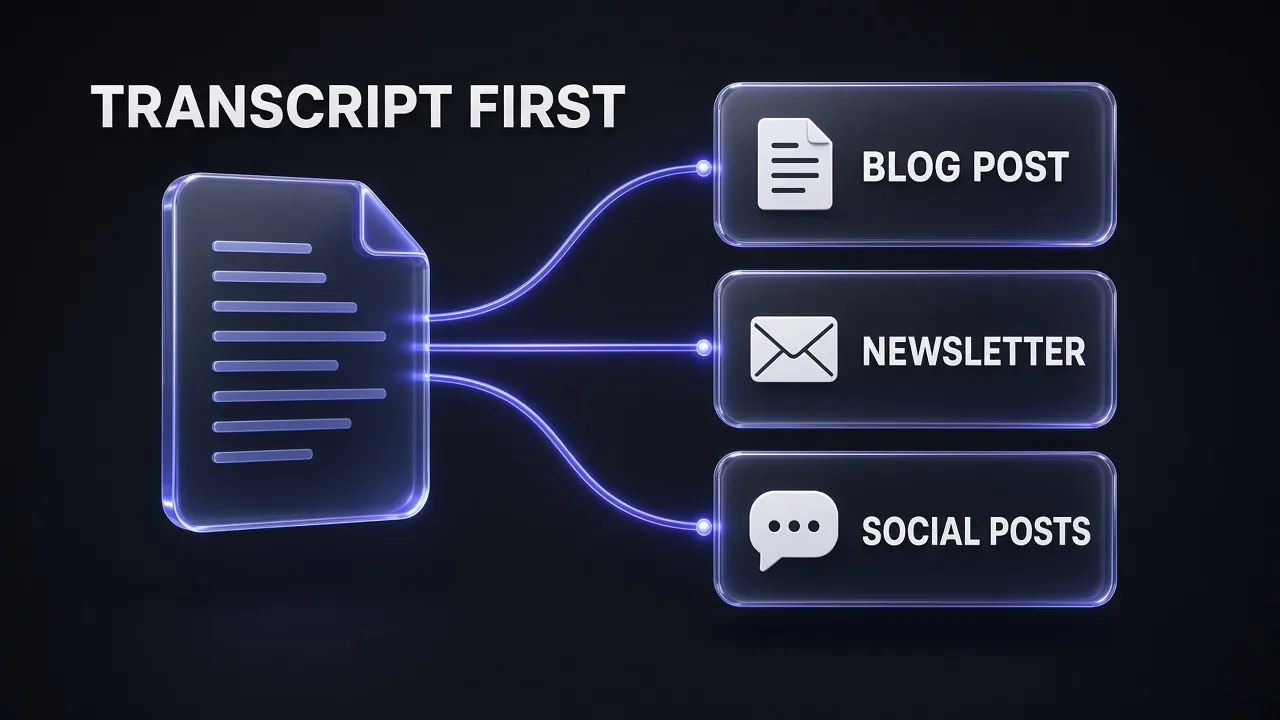
Work in this order: the blog post first, because it forces the full structure; then a newsletter issue that summarises the post and links to both the article and the video; then social posts, which are just the sharpest individual points. Descript's AI can draft social posts, blog posts and show notes from inside the editor, which is convenient if you live there. For more control, paste the cleaned transcript into a chat model with a prompt like this:
Blog Post From a Video Transcript
Rewrite the transcript below as a blog post for my website. It is a transcript of my YouTube video "[VIDEO TITLE]".

Goals:
- Keep my ideas, examples, numbers and opinions. Do not add facts, statistics or claims that are not in the transcript; if something needs a source, flag it with [SOURCE NEEDED].
- Write for reading, not listening: remove filler, repetition and references to things shown on screen ("as you can see here").
- Keep my voice: [DESCRIBE TONE, e.g. direct, practical, first person].

Structure:
- A one-paragraph intro that states the main takeaway in the first two sentences.
- 5 to 8 H2 sections with descriptive headings, following the order of the video.
- Bullet lists where I list steps or options.
- A short conclusion and a line inviting readers to watch the full video.

Target length: [WORD COUNT] words. Primary keyword: [KEYWORD].
After the post, give me: 1 SEO title under 60 characters, 1 meta description under 155 characters, and 5 social post ideas (one sentence each) based on the strongest points.

Transcript:
[PASTE CLEANED TRANSCRIPT]Then edit like a human: add frames where the video relied on visuals, and restore any opinion the rewrite softened. Write social posts one platform at a time; a LinkedIn post and an X thread want different shapes. Our LinkedIn prompt collection and the guide on using ChatGPT for content creation have templates for each format.
Step 6: Reach Viewers in Other Languages
With a clean caption file, translation is cheap. Three levels:
- Translated subtitles. Descript translates captions into 61 languages. Upload each translated SRT to YouTube as an extra language in the Subtitles page.
- YouTube's automatic dubbing. YouTube generates translated audio tracks and marks them "auto-dubbed" in the description. It's on by default for eligible creators, and English videos can be dubbed into 20 languages, including Hindi, Spanish, Tamil and Japanese. Videos over 120 minutes aren't eligible, and you can't edit automatic dubs, so set the original language correctly before upload.
- Lip-synced video translation. HeyGen translates a finished video into other languages with lip-sync, billed at 6 credits per minute in speed mode or 10 in precision mode. On the Creator plan ($29 a month, 600 credits), that's 60 to 100 minutes of translated video. Descript's Business plan also includes translation and dubbing in 30+ languages with a proofreading step.
Start with subtitles: cheapest and editable. Add dubbing only where your analytics show real demand.
The YouTube Repurposing Tool Stack
You don't need every tool: most creators run one transcription option, one editor and one chat model.
| Job | Free option | Paid tool we recommend | Why |
|---|---|---|---|
| Transcribe | YouTube auto captions, Whisper | ElevenLabs Scribe or Descript | Word-level timestamps, speaker labels, custom vocabulary |
| Caption (long-form) | Whisper SRT, YouTube caption editor | Descript | Edit text and timing in one place, export SRT or VTT |
| Caption (Shorts) | YouTube Shorts editor text | Descript or OpusClip | Animated, burned-in captions for sound-off viewing |
| Chapter | YouTube automatic chapters | Chat model + chapters prompt, or Descript's Add chapters | You control titles and boundaries |
| Clip | Edit into a Short (60 s) | OpusClip for volume, Descript for control | Automatic clip picking, vertical reframing, captions |
| Write | Any free chat model | Genspark, Claude or ChatGPT with the prompts above | Long-context rewriting of a full transcript |
| Translate | YouTube automatic dubbing | Descript (subtitles), HeyGen (lip-synced video) | Editable translations, more control over output |
If you pay for one tool, make it the editor. Descript covers transcription, captions, chapters, clips and written drafts in one project. Our Descript pricing breakdown explains the media-hour and AI-credit limits in detail.
What the Workflow Costs per Month
Vendor list prices on October 28, 2026:
| Tool | Free tier | Plan that matters | Price | What you get |
|---|---|---|---|---|
| Whisper | Free, runs locally | None | $0 (your hardware) | SRT, VTT, TXT, JSON output; needs ffmpeg and ~6 GB VRAM for turbo |
| ElevenLabs Scribe | 12 min/month in the app | Starter or API | $6/mo (1 h 31 min in the app) or $0.22 per audio hour via API | 90+ languages, up to 32 speakers, word timestamps |
| Descript | 60 media minutes, 720p export | Hobbyist or Creator | $16/mo yearly ($24 monthly) or $24/mo yearly ($35 monthly) | 10 or 30 media hours, 400 or 800 AI credits, 1080p or 4K |
| OpusClip | 60 credits, watermarked | Starter or Pro | $15/mo, or $29/mo ($14.50/mo yearly) | 150 or 300 minutes of video processed |
| HeyGen (optional) | 3 watermarked videos/month, up to 1 min | Creator | $29/mo ($24/mo yearly) | 600 credits; translation 6 to 10 credits per minute |
Three sensible setups, by our arithmetic on monthly billing:
- $0 setup: Whisper for transcripts and SRT, YouTube's caption editor, the chapters prompt in a free chat model, and Edit into a Short. Slower, but every piece is free.
- One-tool setup, about $24 a month: Descript Hobbyist on monthly billing ($16 a month on yearly billing) for transcription, captions, chapters, clips and written drafts. Ten media hours covers about twenty 30-minute videos a month.
- Volume setup, about $50 a month: Descript Creator ($35 monthly) plus OpusClip Starter ($15) for batch Shorts.
Note the promotional prices: ElevenLabs was showing a $1 first month on Starter and $11 on Creator when we checked. Budget with the regular price.
Common Mistakes to Avoid
- Publishing raw automatic captions. YouTube itself says to review and edit them. Misheard names and numbers are the errors viewers notice first.
- Breaking the chapter rules. No 00:00 start, fewer than three timestamps, or a chapter shorter than 10 seconds, and YouTube won't show your chapters.
- Uploading a styled SRT. YouTube strips style markup from SRT and SBV files and expects plain UTF-8. Use VTT if you need positioning.
- Cutting Shorts over three minutes or in 16:9. Only square or vertical videos up to three minutes count as Shorts.
- Letting the model invent quotes or facts. Tell it to use only words from the transcript, as the prompts above do, and spot-check every clip and quote.
Verdict: The Workflow We Recommend
For most creators the rule is simple: transcribe once, fix it once, and let everything else come from that file. Descript is the best single tool because transcript, captions, chapters and clips live in one project. Add OpusClip for Shorts in volume, Scribe for cheap API transcription, and Whisper when the budget is zero.
Bottom line: a long video published once and forgotten is the most expensive way to make content. With a clean transcript and three prompts, it becomes captions, chapters, Shorts, an article and a week of posts.
Frequently Asked Questions
8 questions answered