The PromptsRush journal
TutorialsHow to Use Google Antigravity With Gemini 4 Argon
A step-by-step guide to running Gemini 4 Argon in Google Antigravity, built from Google's docs: which plans and surfaces support it, install commands for the App, CLI and IDE extensions, picking Argon, thinking levels and reviewing plans.
Advertisement
Short version: to use Gemini 4 Argon in Google Antigravity, you need a paid Google AI Pro plan (not the trial), Google AI Ultra or an eligible Gemini Enterprise subscription, and you need to run it in the right place. Argon works in the Antigravity App, the Antigravity CLI and the Antigravity IDE extensions. It does not work in the standalone Antigravity IDE. Get those two things right and the rest is a short setup: install, sign in, pick Argon in the model selector, choose a thinking level, and review the agent's plan before it touches your code.
This guide walks through each step with the exact install commands, menu paths and CLI commands from Google's own documentation, checked on 19 October 2026. We haven't run benchmarks of our own, so anything about performance is Google's claim, labelled as such. If you want the model background first, our explainer on Gemini 4 Argon's long decode and thinking levels covers what the model is and what it costs on the API.
What Google Antigravity Is
Google Antigravity is Google's agent-first coding platform. You hand an agent a task ("add unit tests for the authentication handlers"), it researches your codebase, writes an implementation plan, makes the changes and shows you the results to approve. Google calls those reviewable deliverables artifacts: Markdown implementation plans, code diffs, architecture diagrams, images and browser recordings.
Antigravity isn't one app. Google's getting-started page lists several surfaces that share the same agent harness and sign-in:
- Antigravity App (v2.5 and later): the desktop app, with a visual sidebar for projects, conversations and artifacts.
- Antigravity CLI (the
agybinary, v1.2 and later): a terminal client with slash commands and a headless mode for scripts. - IDE extensions for five editors: VS Code, JetBrains IDEs, Visual Studio, Zed and Xcode.
- Antigravity IDE: a standalone editor with its own Agent Manager.
Agents work inside Projects, which set repository boundaries and permissions, and can spawn subagents that run in parallel in the background, which is where a strong reasoning model like Argon earns its keep.
Where Gemini 4 Argon Works (and Where It Doesn't)
This is the detail that's easiest to miss. Google rolled Argon into Antigravity on 13 October 2026, and the model table on Antigravity's models page carries a footnote: Gemini 4 Argon is not available in the Antigravity IDE. It is available in the Antigravity App, the Antigravity CLI and the IDE extensions. The getting-started guide repeats it: if you want Argon (or Gemini Enterprise sign-in), install the App, the CLI or an IDE extension. If you can't find Argon in the standalone IDE, nothing is broken.
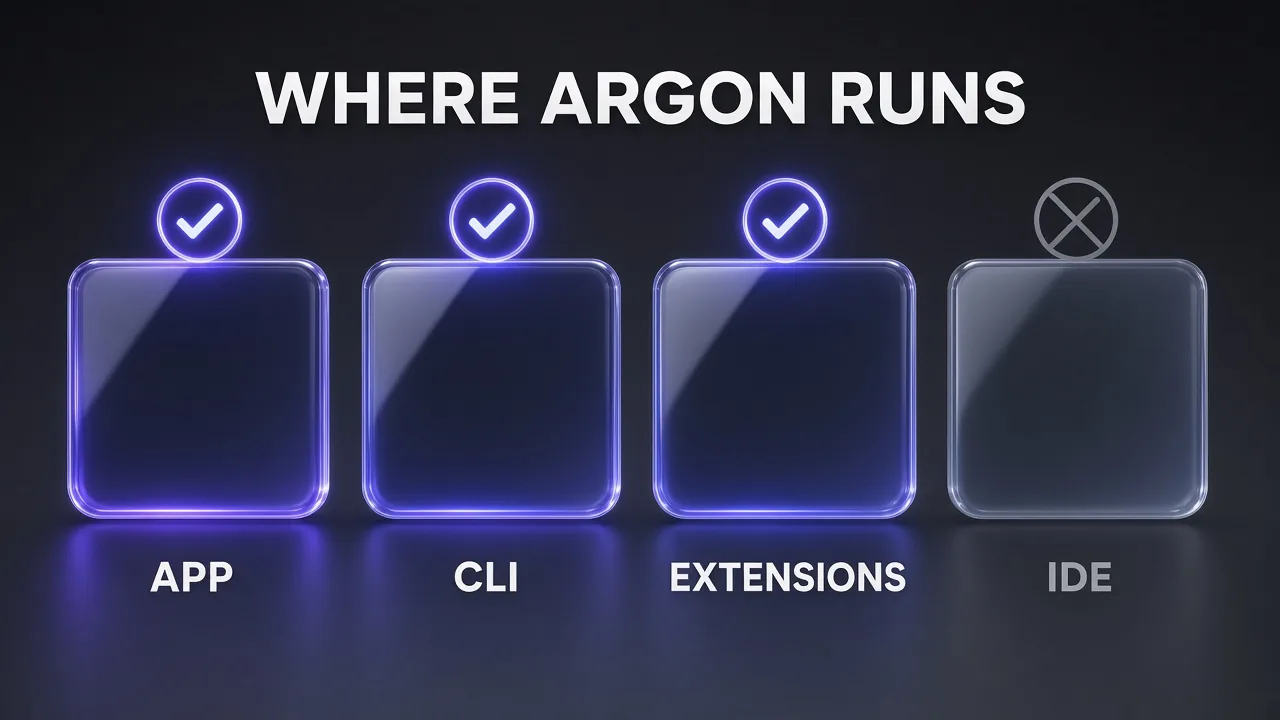
Your plan matters just as much. Here is the availability Google publishes for Argon in Antigravity:
| Plan | Gemini 4 Argon in Antigravity |
|---|---|
| Free | No |
| Google AI Plus | No |
| Google AI Pro (trial) | No |
| Google AI Pro (paid) | Yes |
| Google AI Ultra | Yes |
| Gemini Enterprise (eligible subscriptions) | Yes |
Everyone, including Free users, still gets Gemini 3.8 Flash as the core agent model, so you can learn the workflow before paying. If you're weighing Argon against Anthropic's flagship before you upgrade, our Gemini 4 Argon vs Claude Opus 5.5 comparison puts the benchmarks and prices side by side.
What You Need Before You Start
Run through this checklist first. Each item comes from Antigravity's FAQ, plans or install pages:
- A personal Google Account in a supported country. India is on Antigravity's list of supported countries. If a Google Workspace account won't sign in, the FAQ suggests trying an @gmail.com address.
- Age 18 or over. Antigravity is unavailable to users under 18.
- A paid Google AI Pro or Ultra plan (or Gemini Enterprise). Pro trial users have to submit an upgrade request to switch to paid Pro, or upgrade straight to Ultra on Google One.
- A supported machine. The App needs macOS 12 (Monterey) or later, Windows 10 (64-bit) or Windows 11, or Linux with glibc 2.28 or newer (Ubuntu 20+, Debian 10+, Fedora 36+, RHEL 8+).
- A Git repository to work in. A test suite helps a lot (see Step 5).
On quotas, Google's plans page doesn't publish fixed message counts. Ultra gets the most generous quota, refreshed every five hours, plus the highest weekly limits. Pro gets a high quota refreshed every five hours until a weekly limit is reached. Free users get a quota that refreshes weekly. Limits track how much work the agent does, so complex tasks use more quota than quick ones. Pro and Ultra users can also pay for overages with AI credits.
The 5-step setup at a glance
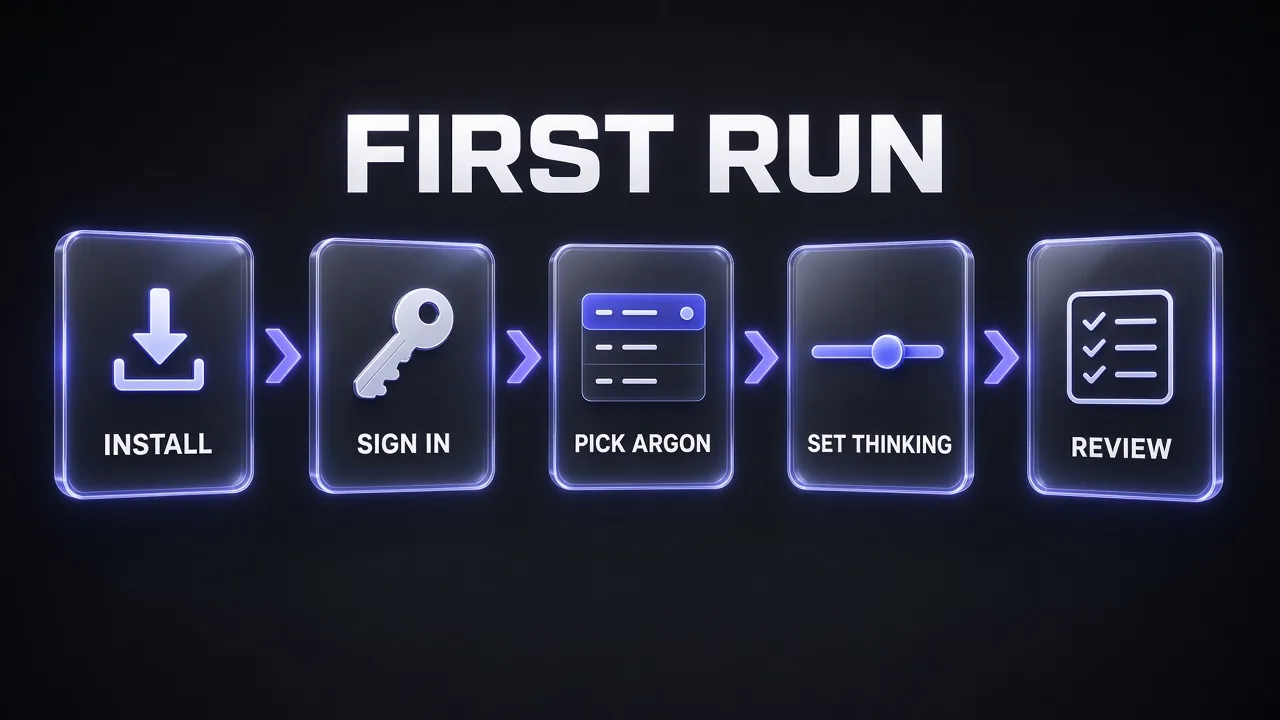
The setup below follows five stages, and the rest of this guide takes them in order: install the App, CLI or an IDE extension; sign in with a Google account on an eligible plan; pick Argon in the model selector; set the thinking level to match the task; and review the agent's plan and diffs before the changes land.
Step 1: Install the Antigravity App, CLI or an IDE Extension
Pick the surface that matches how you work. You can install more than one.
Antigravity App (desktop)
Download the installer from antigravity.google/download. On macOS, open Antigravity.dmg and drag Antigravity into Applications. If you're upgrading, choose Replace rather than Keep Both. On Windows, run the .exe installer. On Linux, extract and launch it:
tar -xzf Antigravity.tar.gz
./Antigravity
Google's Argon launch post says to update to the latest version of Antigravity to try the model, so if you installed months ago, update first.
Antigravity CLI (agy)
On macOS, Linux or Googlebook, use Google's install script. The binary lands in ~/.local/bin/agy:
curl -fsSL https://antigravity.google/cli/install.sh | bash
On Windows PowerShell:
irm https://antigravity.google/cli/install.ps1 | iex
On Windows CMD:
curl -fsSL https://antigravity.google/cli/install.cmd -o install.cmd && install.cmd && del install.cmd
On Windows the default location is C:\Users\<username>\AppData\Local\agy\bin. Then confirm it worked:
agy --version
The first launch asks for a colour scheme, a rendering mode (Alt-Screen or Inline) and whether you trust the repository folder.
IDE extensions
In VS Code, open the Extensions sidebar (Cmd+Shift+X on macOS, Ctrl+Shift+X on Windows and Linux), search for Google Antigravity (published by Google) and click Install. The extension installs the local agy backend service on first launch. In JetBrains IDEs (version 2026.2.1 or later), go to JetBrains AI > Settings > Agents, search for Antigravity and install it. Visual Studio, Zed and Xcode have their own guides.
Pro tip: Already using the standalone Antigravity IDE? Keep it if you like it, but add the App or the CLI next to it for Argon work. Google says signing in on one local surface shares your credentials across the others.
Step 2: Sign In With the Right Account
Antigravity uses one sign-in across all its surfaces. It decides which models you see and how much quota you get, so use the Google account that holds your Pro or Ultra plan.
- App: launch Antigravity, click Sign in, and finish the browser sign-in with your personal Google Account.
- CLI: run
agy. It first checks your operating system's keyring (Apple Keychain, Linux Secret Service or Windows Credential Manager) and signs you in silently if it finds a saved session. If not, it opens your browser. - CLI over SSH: the CLI detects the remote session and prints a sign-in URL. Open it on your local machine, sign in, then paste the code it shows back into the terminal.
- IDE extensions: click the Antigravity icon in your editor's activity bar or tool window, click Sign In and finish in the browser.
- Work accounts: choose Business account, then Continue with Google Cloud.
There is also a Gemini API key route for headless and CI runs. It needs two things: "modelProvider": "gemini" in ~/.gemini/antigravity-cli/settings.json and an exported GEMINI_API_KEY. The key on its own does nothing. In that mode, model requests go straight to the Gemini API and the CLI never opens an account session. Argon isn't on the Gemini API's free tier, so for everyday work the account sign-in is the simpler route.
Step 3: Pick Gemini 4 Argon
Google's models page says you choose the reasoning model from the model selector menu under the conversation prompt box. Open it and choose Gemini 4 Argon. If it isn't in the list, check three things in this order: you're not in the standalone Antigravity IDE, you're signed in with the account that holds a paid Pro, Ultra or Enterprise plan, and your App or CLI is on the latest version.
Your model choice persists between messages in a conversation. If you switch mid-task, the agent finishes the current turn on the old model first, unless you cancel the run. The same list offers Claude Opus 5.5 on paid plans, and our Claude Opus 5.5 guide explains when that's the better pick.
In the CLI, type /model to open the picker. The CLI reference says the choice persists across sessions, so you set it once. Antigravity's settings page also shows a --model flag for one-off overrides, but it doesn't print the exact Argon model string, so use /model rather than guessing.
Step 4: Set the Thinking Level
Argon offers three thinking levels in Antigravity: Low, Medium and High, chosen next to the model in the same selector. Lower levels respond faster for quick edits; higher levels reason more deeply for complex architecture and debugging.
In the CLI, the same control is called effort:
/effort
/effort low
/effort medium
/effort high
Plain /effort opens a gauge you move with the arrow keys, and Enter saves the level as your default. The status line shows the active level next to the model name. For a single scripted run that shouldn't change your default, pass the flag instead:
agy -p "Summarize the changes in the last commit" --effort low
Which level should you use? Antigravity's docs don't publish a recommendation for Argon, but Google's Gemini API guide does. It calls medium the default and "recommended for most tasks, including complex code and agentic use cases". It reserves high for hard reasoning and the most difficult code or agent tasks, noting it uses the most tokens and has the slowest first token. Its rule of thumb: keep the lowest level that meets your quality bar.
| Task | Starting level |
|---|---|
| Renames, small fixes, explaining a file | Low |
| Features, tests, everyday refactors | Medium |
| Subtle bugs, concurrency issues, multi-file architecture changes | High |
My take: start on Medium. Antigravity's plans page says quota tracks the amount of work the agent does, and the API guide says High uses the most tokens. Running every task on High is likely to drain a Pro plan's five-hour quota faster than you need to. Switch up when a task actually stalls.
Step 5: Review Plans and Diffs Before Anything Lands
Argon is built for long, autonomous tasks, which makes review more important, not less.
In the App
Click the New Project icon (a folder with a plus sign) in the left sidebar, click Add Folder to pick your repository, then Create. Type your task and press Enter. The setup screen asks for a mode: Local mode works directly in your folder, while New worktree mode works in an isolated Git worktree. Choose the worktree for anything big. When you start a conversation you also choose between Planning mode, where the agent researches and writes an implementation plan first, and Fast mode for small, local tasks.
Then set the review policy under Settings, in the Agent tab. Request review (Google's recommended option) makes the agent stop and wait for your approval on plans and diffs. Always proceed skips the pause. With Argon, leave it on Request review until you trust how it handles your repository.
In the CLI
The CLI has three execution modes you cycle with Shift+Tab: default pauses for a diff review before writing files, accept-edits approves file edits automatically, and plan makes the agent investigate with read-only tools and outline its steps before writing code. You can launch straight into one:
agy --mode=plan
When the agent has something for you, press Ctrl+R to open the Artifact Review screen, use Tab to inspect inline diffs, press Y to approve and Esc to close.
Pro tip: Google's CLI best-practices page calls a verification loop "the single most effective way" to get reliable changes from an agent. Make sure the repo has tests, and end your prompts with the command to run, such as Run npm test afterward to verify the build.
Your First Argon Tasks: 5 Prompts to Copy
These prompts follow Google's best-practices pattern: explore, plan, execute, and give the agent a way to check its work. Type @ to insert exact file paths. For a bigger library of developer prompts written for this model, see our 25 best Gemini 4 Argon prompts for developers.
1. Get a codebase tour before changing anything
Use on Medium in Planning mode. Nothing gets edited, so it's a safe first run on a new repository.
Codebase Tour (Read-Only)
Explore this repository without editing any files.
1. Summarise what the project does, the main entry points and how a request flows through the code.
2. List the key folders with one line on what each owns.
3. Tell me how to run the app, the tests and the linter, based on the files you find.
4. Flag anything risky or confusing: dead code, missing tests, unusual patterns.
Finish with questions I should answer before you make changes.
2. Plan a feature, then build it with a test loop
Use on Medium. The plan arrives as an artifact you can comment on before any file changes.
Plan-First Feature With Verification
Goal: [DESCRIBE THE FEATURE].
First, find where this belongs in the codebase and write an implementation plan: files to change, new files, data or API changes, and the tests you will add. Stop and wait for my approval.
After I approve: write the tests first, then the implementation. Run [TEST COMMAND] after each meaningful change and fix failures before moving on. When everything passes, summarise what changed.
3. Hunt down a stubborn bug
Switch to High for this one. It's the kind of multi-step reasoning Google pitches Argon for.
Root-Cause Bug Hunt
Bug: [WHAT HAPPENS] when [STEPS TO REPRODUCE]. Expected: [WHAT SHOULD HAPPEN].
Relevant files: [@FILE PATHS]. Error output: [PASTE LOG OR STACK TRACE].
Do not patch symptoms. Trace the code path end to end, list your hypotheses ranked by likelihood, and test each one by reading code or running small commands. Write a failing test that reproduces the bug, then fix the root cause and show that the test passes.
4. Fan out test coverage with subagents
Use on Medium with a worktree. You can watch the subagents in the App's subagent panel or the CLI's /agents panel.
Parallel Test Coverage Sweep
Find the five modules in this repository with the weakest test coverage that matter most to users.
For each one, spawn a separate subagent to write focused unit tests that cover the main paths and the edge cases. Each subagent should run only its own tests and report back.
When all subagents finish, run the full test suite once, fix any conflicts, and give me a table of modules, tests added and anything you could not cover.
5. Write the project's rules file
Use on Medium. Do it once and every later conversation starts with better context.
Generate an AGENTS.md Rules File
Read this repository and draft an AGENTS.md file for the root folder. Include:
- How to install, run, test and lint the project (exact commands).
- Coding conventions you can see in the code: naming, folder structure, error handling, formatting.
- Rules for agents: never edit generated files or secrets, always run the tests before finishing, keep changes small.
- Anything deprecated that should not be used.
Keep it under 80 lines, show me the draft, and only save it after I approve.
Going Further: Subagents, Custom Agents and Rules
Rules files. Antigravity automatically loads an AGENTS.md or GEMINI.md file from your project (and from any subfolder) and adds it to the agent's context. Global rules can live in ~/.gemini/GEMINI.md or ~/.gemini/AGENTS.md. It's one of the cheapest quality upgrades available, and it's a practical form of context engineering: you decide what the model always knows instead of repeating it in every prompt.
Subagents. The main agent can start subagents that run in parallel, each with a clean context. Antigravity ships with built-in research, browser and self subagents. In the CLI, /agents opens the Agent Manager panel, where you can see each subagent's state (running, done, error or killed), press Enter to read its full log, press K to stop a runaway one, and approve or deny protected actions with A or D.
Custom agents. Define your own agent as an agent.md file with YAML frontmatter (a name and a description, then the instructions). The /agents panel shows where they go, and lists them under Available Agents:
Workspace: {workspace}/.agents/agents/{agent_name}/agent.md
Global: ~/.gemini/config/agents/{agent_name}/agent.md
For tougher problems, paid plans also get /boost, which splits a hard bug or refactor across specialised subagents and checks their answers over several rounds.
Google's launch post says plugins, skills and MCP integrations connect the agent to your own data sources and workflows.
App vs CLI vs IDE Extensions: Which to Use
All three run Argon. The difference is where you want to spend your day.
| Surface | Argon | Best for |
|---|---|---|
| Antigravity App | Yes | Running several agents and projects at once, worktrees, visual artifacts |
| Antigravity CLI (agy) | Yes | Terminal workflows, SSH machines, scripts and CI with agy -p |
| IDE extensions | Yes | Staying inside VS Code, JetBrains, Visual Studio, Zed or Xcode |
| Antigravity IDE (standalone) | No | Its own editor and Agent Manager, with other models |
Honest answer: terminal people should start with the CLI, since it installs in one line and /model plus /effort cover every Argon control. Use the App to watch several agents in parallel, or an extension if you don't want to change editors.
Common Mistakes (and the Fixes)
- Looking for Argon in the standalone IDE. It isn't there by design. Install the App, the CLI or an IDE extension.
- Trying it on a Pro trial. Argon needs a paid Pro plan, Ultra or Enterprise. Trial users have to submit an upgrade request first.
- Running every task on High. You burn quota and wait longer. Start on Medium.
- Setting only GEMINI_API_KEY. The CLI ignores the key unless
modelProvideris set togeminiin its settings file. - Using your Antigravity login in other tools. Antigravity's FAQ says using third-party software such as other coding agents with your Antigravity login breaks its Terms of Service and can get your account suspended. Use a Gemini API key for that instead.
- Building on models marked for removal. Antigravity's models page lists Claude Sonnet 4.6, Claude Opus 4.6 and GPT-OSS-120b for removal on 2 November 2026.
If a paid Google plan isn't on the cards yet, other coding models are worth a look in the meantime. Our GLM-5.3 coding prompts show what that route looks like in practice.
The Verdict
Using Gemini 4 Argon in Google Antigravity is easy once you know the two catches: it needs paid Google AI Pro (no trials), Ultra or Gemini Enterprise, and it lives in the App, the CLI and the IDE extensions, not the standalone IDE. After that: install, sign in, pick Argon (or /model in the CLI), set the thinking level and keep Request review on.
Google's own numbers are the strongest argument for trying it. In its Antigravity launch post, the company says more than 100,000 people across Alphabet use Argon in an internal version of Antigravity each month, and that over four weeks it saw a 35% increase in agentic code and a 30% drop in post-submit rollbacks. Those are company-reported figures, not independent tests. Still, they're a reason to give it your hardest bug.
My take: install the CLI or the App, add an AGENTS.md file, run on Medium, and only reach for High and /boost when a task actually needs them.
Frequently Asked Questions
8 questions answered