Loading elite prompt experience...
Example Output
 Open in Gallery
Loading elite prompt experience...
A curated stack for turning ideas into production-ready video, ads, and art.
Open in GalleryA highly effective and visually stunning tool for generating conceptual visualizations of workflows, data networks, or abstract organizational structures.
It turns traditional charts into abstract 3D art: a clean, organized, forward-moving flow built from your visual metaphor, passing through sleek geometric nodes and gates that convey structure and progression. A minimalist palette of glowing elements against a dark background, soft depth of field, and a premium 8k render with no text or watermark complete the corporate tech aesthetic.
Slide decks, corporate presentations, landing page hero images, whitepapers, and technical blog headers that need to explain systems, processes, or software architecture. Product managers, technical writers, business consultants, developers, and marketing teams can convey connectivity and workflow without sterile diagramming tools.
Click the "Copy" button above to copy the complete prompt text to your clipboard. This will copy all the text including any placeholders.
If you see placeholders like {{topic}} or {{style}} in the prompt, click "Customize & Use" to open the customization dialog. Fill in your specific values to personalize the prompt for your needs.
Go to gemini.google.com and sign in to your Google account. Make sure you have access to the image generation feature.
In Gemini, look for the "Create image" or image generation option. If available, switch to Gemini Pro or Advanced mode for higher quality outputs.
Paste the copied prompt (Ctrl/Cmd + V) into the AI tool's text input field. click the send/generate button to create your image.
Review the generated image. If it doesn't match your expectations, try regenerating or adjusting the prompt with more specific details. Most AI tools allow multiple generation attempts.
Generate with
prompt auto-copiesAffiliate links · We may earn a commission at no cost to you
Tested by the PromptsRush team
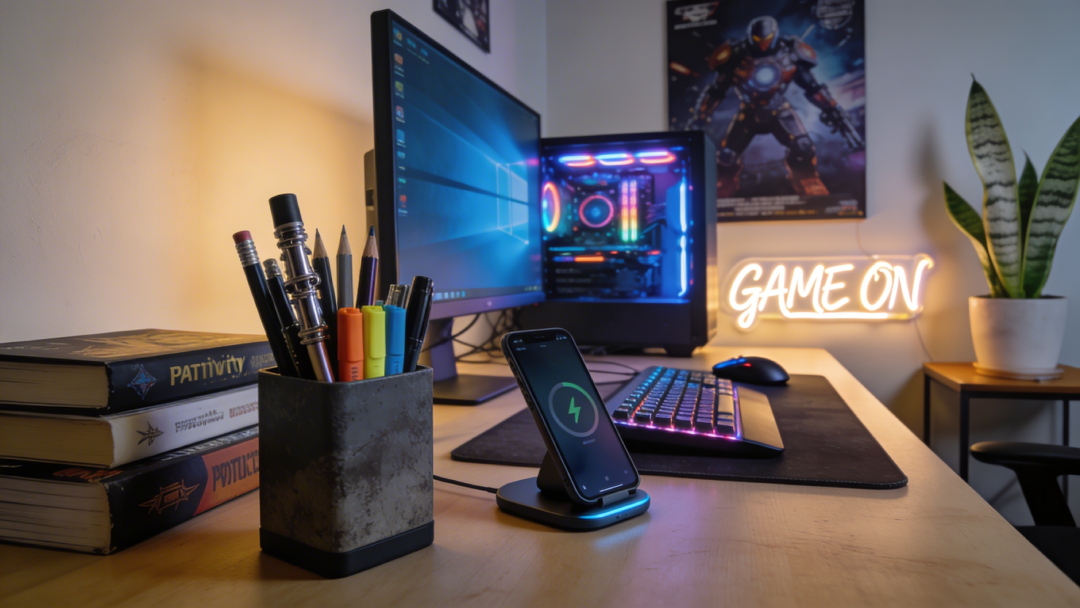
Deep Work Aesthetic Desk Setup
Advertisement