Loading elite prompt experience...
Example Output
 Open in Gallery
Loading elite prompt experience...
A curated stack for turning ideas into production-ready video, ads, and art.
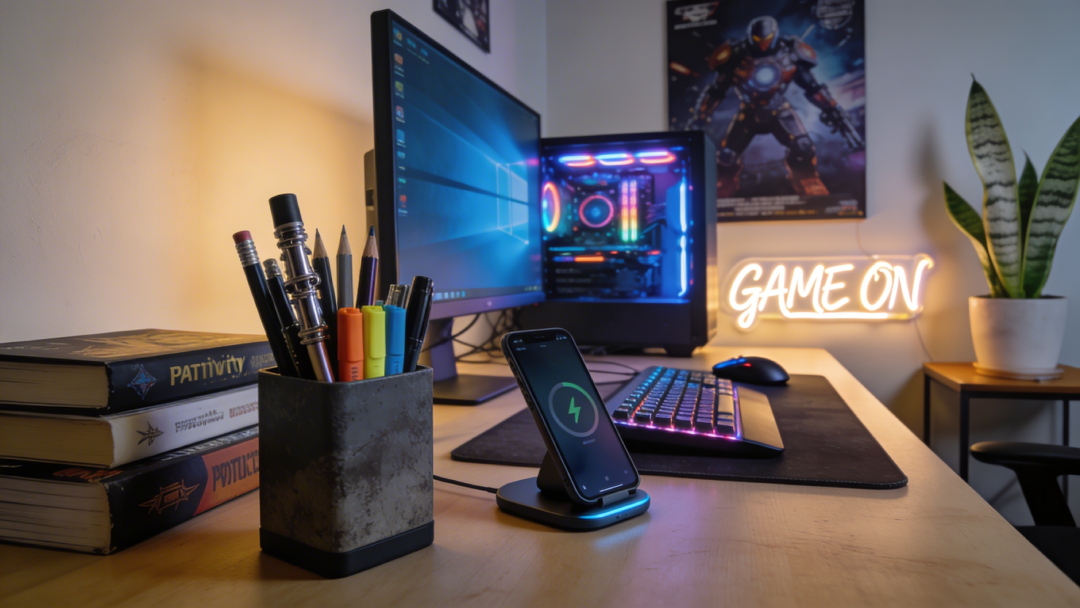
Open in GalleryGenerate cozy, highly curated desk and workspace setups that perfectly encapsulate the modern 'aesthetic productivity' and 'deep work' movements.
The prompt renders lifestyle photography of a desk meticulously arranged for focus, with soft cinematic lighting and extreme attention to detail. The workspaces evoke a sense of focused calm and digital minimalism — the Instagram-worthy setup that productivity culture is built on.
Visual assets for productivity blogs, header images for task management apps, social posts for study-gram or workspace-setup accounts and background images for focus timer applications. Productivity software startups, lifestyle influencers, tech reviewers and writers get aspirational workspace imagery without cleaning and staging a physical desk full of expensive gadgets.
Click the "Copy" button above to copy the complete prompt text to your clipboard. This will copy all the text including any placeholders.
If you see placeholders like {{topic}} or {{style}} in the prompt, click "Customize & Use" to open the customization dialog. Fill in your specific values to personalize the prompt for your needs.
Go to gemini.google.com and sign in to your Google account. Make sure you have access to the image generation feature.
In Gemini, look for the "Create image" or image generation option. If available, switch to Gemini Pro or Advanced mode for higher quality outputs.
Paste the copied prompt (Ctrl/Cmd + V) into the AI tool's text input field. click the send/generate button to create your image.
Review the generated image. If it doesn't match your expectations, try regenerating or adjusting the prompt with more specific details. Most AI tools allow multiple generation attempts.
Generate with
prompt auto-copiesAffiliate links · We may earn a commission at no cost to you
Tested by the PromptsRush team
Modern Workspace Ambience for Focus
Advertisement