Loading elite prompt experience...
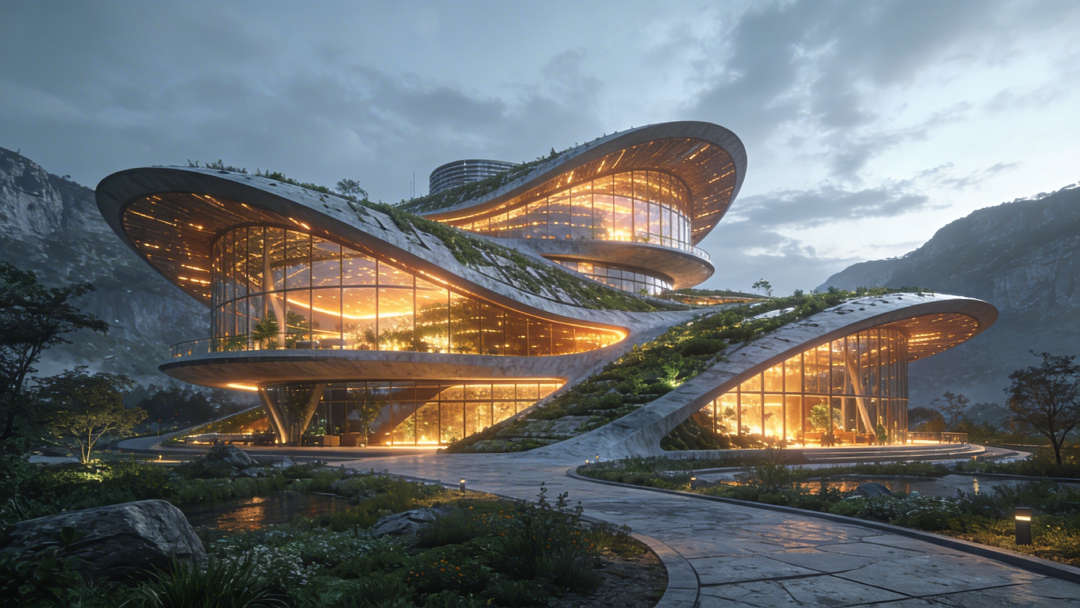
Example Output
 Open in Gallery
Loading elite prompt experience...
A curated stack for turning ideas into production-ready video, ads, and art.
Open in GalleryGenerate awe-inspiring, photorealistic exterior architectural visualizations focusing on sustainable, solarpunk, and eco-futurist design principles.
The prompt merges massive modern structures with lush, integrated greenery and organic shapes, rendered at epic scale in an Unreal Engine 5 style architectural visualization. Warm glowing interior lights are built into every render, playing against cool exterior tones and foliage so the building looks inviting and inhabited.
Urban planning concept proposals, architectural firm portfolios, science fiction world-building concept art and high-impact headers for sustainability and green-tech articles. Architects, urban planners, concept artists, real estate developers and environmental tech companies can use it to show investors or the public a compelling vision of a green future.
Click the "Copy" button above to copy the complete prompt text to your clipboard. This will copy all the text including any placeholders.
If you see placeholders like {{topic}} or {{style}} in the prompt, click "Customize & Use" to open the customization dialog. Fill in your specific values to personalize the prompt for your needs.
Go to gemini.google.com and sign in to your Google account. Make sure you have access to the image generation feature.
In Gemini, look for the "Create image" or image generation option. If available, switch to Gemini Pro or Advanced mode for higher quality outputs.
Paste the copied prompt (Ctrl/Cmd + V) into the AI tool's text input field. click the send/generate button to create your image.
Review the generated image. If it doesn't match your expectations, try regenerating or adjusting the prompt with more specific details. Most AI tools allow multiple generation attempts.
Generate with
prompt auto-copiesAffiliate links · We may earn a commission at no cost to you
Tested by the PromptsRush team
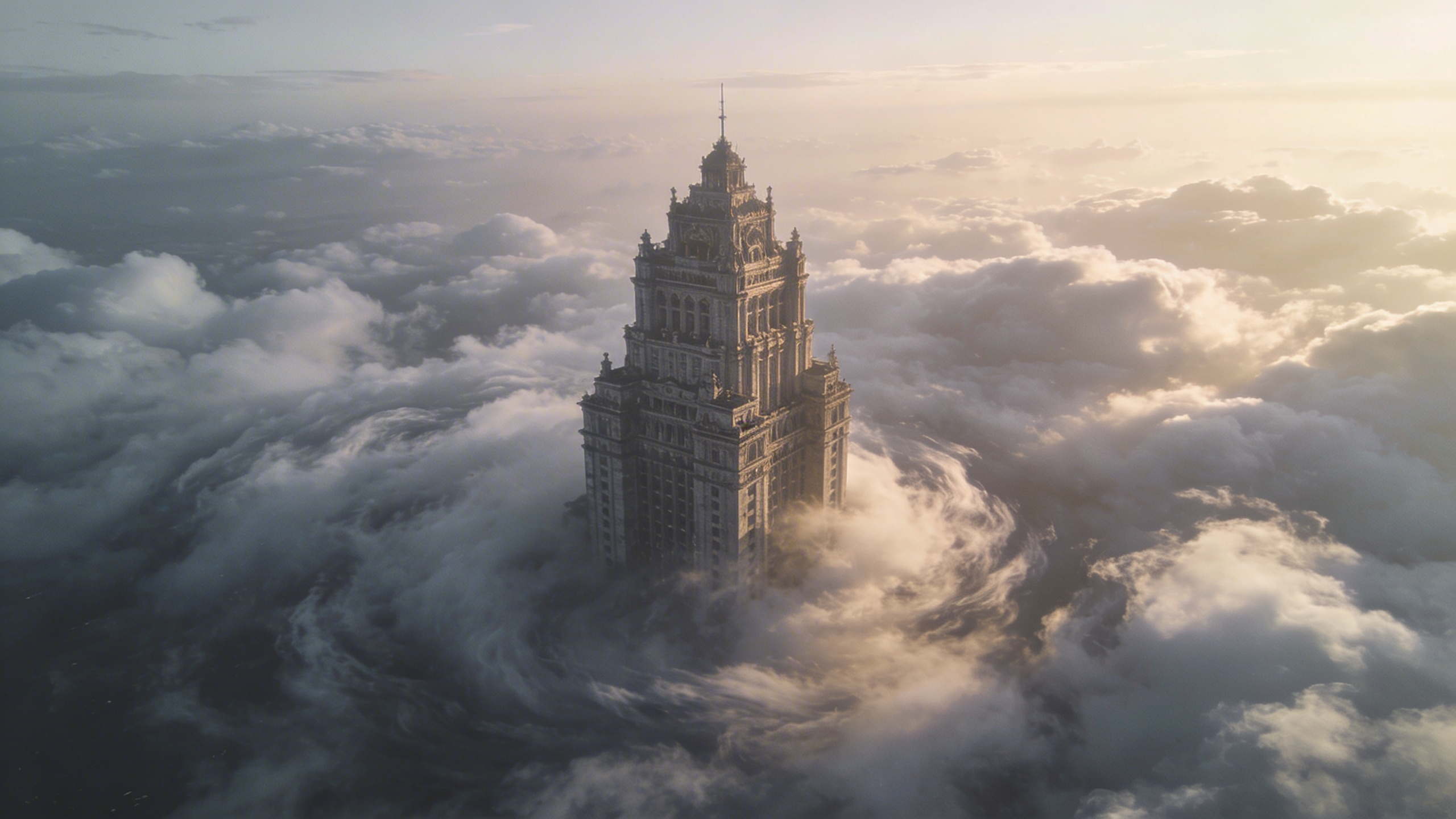
Surreal Cloud Architecture
Advertisement