Loading elite prompt experience...
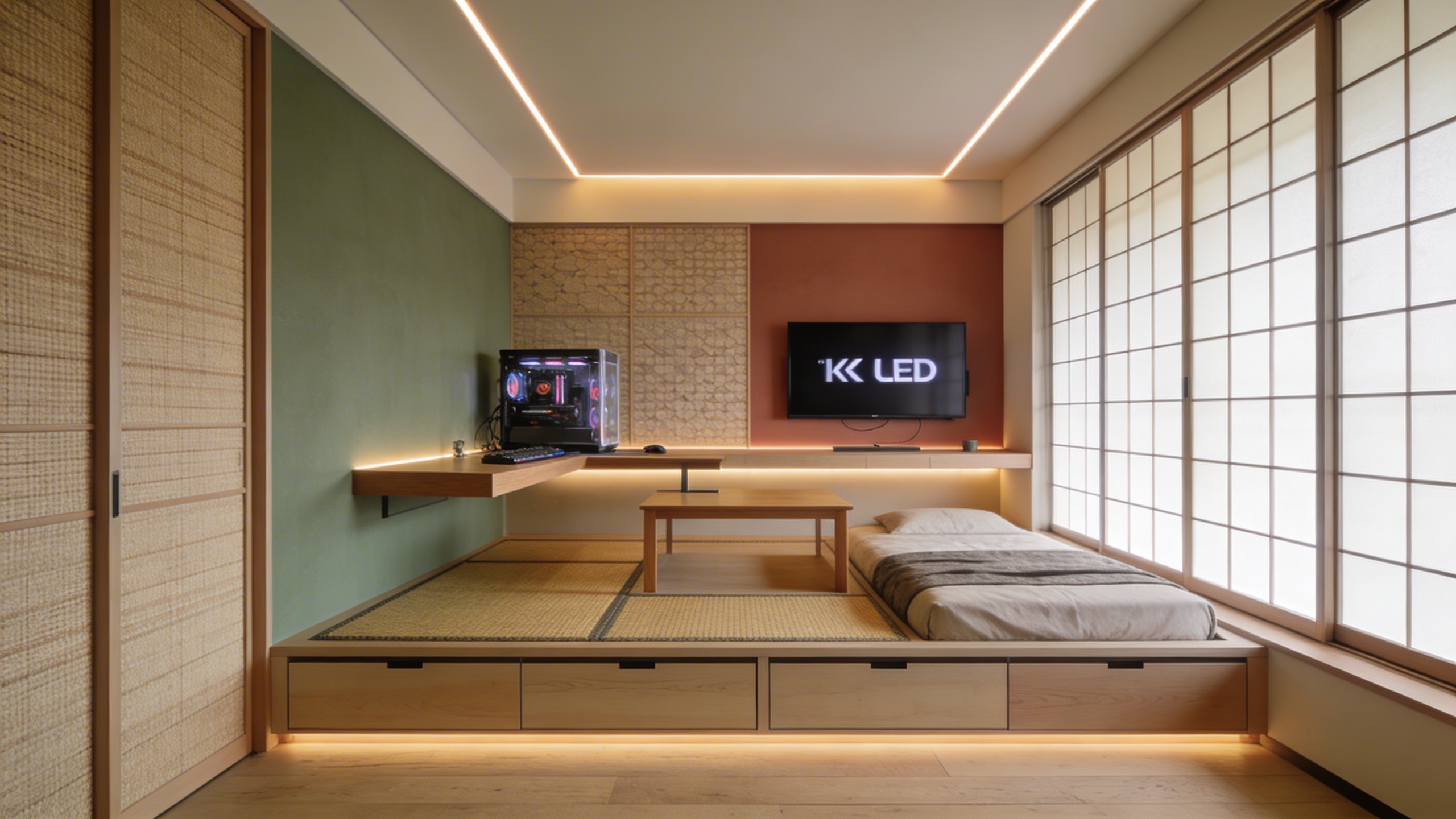
Example Output
 Open in Gallery
Loading elite prompt experience...
A curated stack for turning ideas into production-ready video, ads, and art.
Open in GalleryThis prompt crafts stunning interior design renderings in the popular 'Japandi' aesthetic, a hybrid of Japanese minimalism and Scandinavian functionality.
The style is defined by natural materials, warm neutral palettes and intentional simplicity, and the prompt locks those in: pale woods, muted earthy tones and a wide-angle lens that shows the full room layout. Output is photorealistic, interior-design-magazine-quality photography at 8k resolution.
Real estate staging concepts, interior design pitch decks, architectural mood boards and hero imagery for furniture or home decor e-commerce sites. Interior designers, real estate agents showing the potential of empty properties, architects and lifestyle brands needing high-end residential backgrounds for product composites all get value from it.
Click the "Copy" button above to copy the complete prompt text to your clipboard. This will copy all the text including any placeholders.
If you see placeholders like {{topic}} or {{style}} in the prompt, click "Customize & Use" to open the customization dialog. Fill in your specific values to personalize the prompt for your needs.
Go to gemini.google.com and sign in to your Google account. Make sure you have access to the image generation feature.
In Gemini, look for the "Create image" or image generation option. If available, switch to Gemini Pro or Advanced mode for higher quality outputs.
Paste the copied prompt (Ctrl/Cmd + V) into the AI tool's text input field. click the send/generate button to create your image.
Review the generated image. If it doesn't match your expectations, try regenerating or adjusting the prompt with more specific details. Most AI tools allow multiple generation attempts.
Generate with
prompt auto-copiesAffiliate links · We may earn a commission at no cost to you
Tested by the PromptsRush team
Steampunk Inventor's Workshop
Advertisement