Loading elite prompt experience...
Example Output
 Open in Gallery
Loading elite prompt experience...
A curated stack for turning ideas into production-ready video, ads, and art.
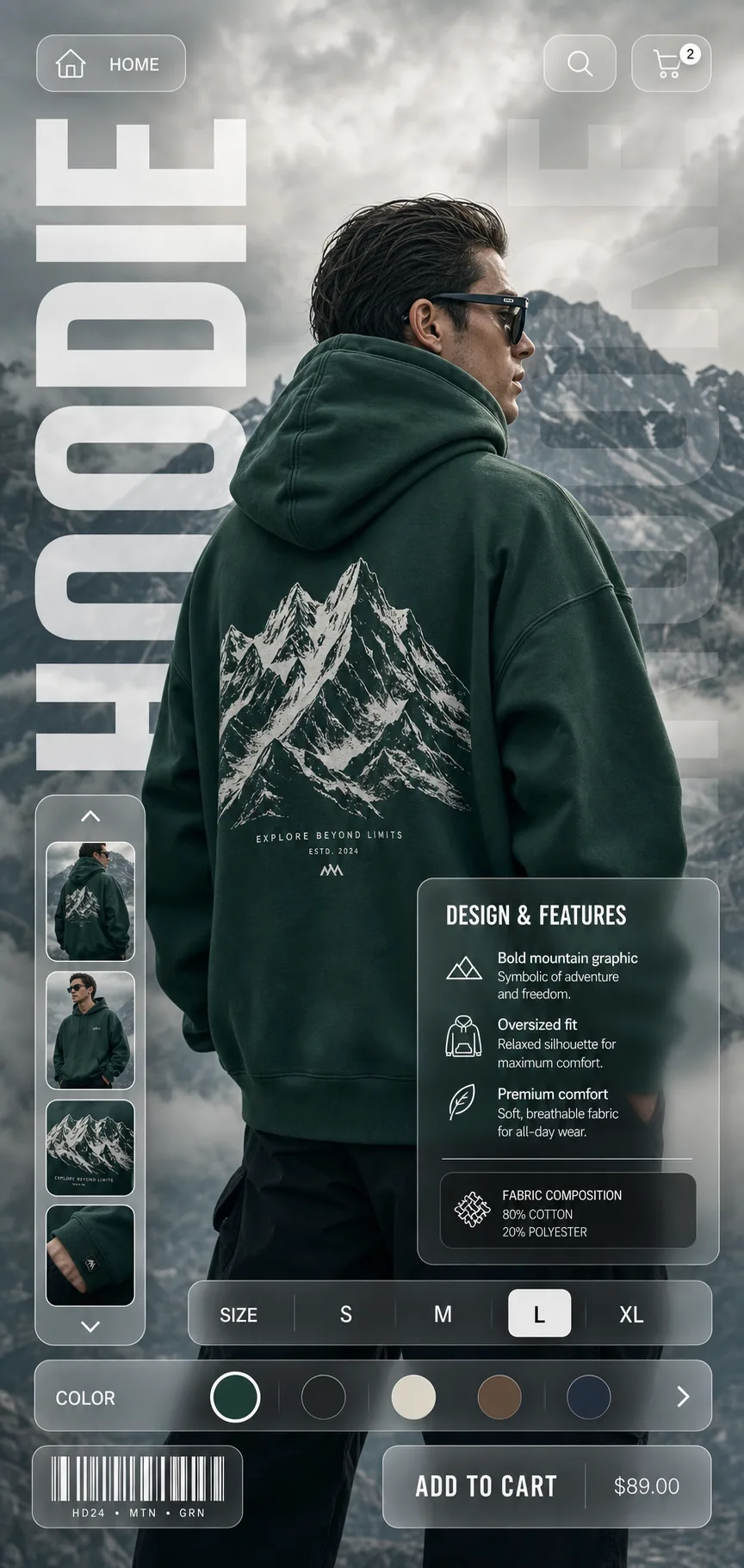
Open in GalleryA glassmorphism product poster prompt that turns any apparel or product shot into a sleek e-commerce campaign visual with frosted-glass UI overlays.
The template composes a full vertical poster around your product: a hero model or product shot against a cinematic backdrop, oversized translucent typography running down the left edge, and a layer of floating frosted-glass interface elements — navigation pills with home, search and cart icons, a vertical thumbnail carousel, a Design & Features info card, an S M L XL size selector, a color-swatch slider and a barcode chip. The result reads like a landing page and a fashion editorial at once, which is why the style dominates streetwear lookbooks, Behance shop concepts and premium direct-to-consumer feeds.
E-commerce designers, apparel brands, print-on-demand sellers and social media marketers who need scroll-stopping product creative for Instagram, store banners, lookbooks and client mockups without commissioning a studio shoot and a UI designer.
Click the "Copy" button above to copy the complete prompt text to your clipboard. This will copy all the text including any placeholders.
If you see placeholders like {{topic}} or {{style}} in the prompt, click "Customize & Use" to open the customization dialog. Fill in your specific values to personalize the prompt for your needs.
Go to gemini.google.com and sign in to your Google account. Make sure you have access to the image generation feature.
In Gemini, look for the "Create image" or image generation option. If available, switch to Gemini Pro or Advanced mode for higher quality outputs.
Paste the copied prompt (Ctrl/Cmd + V) into the AI tool's text input field. click the send/generate button to create your image.
Review the generated image. If it doesn't match your expectations, try regenerating or adjusting the prompt with more specific details. Most AI tools allow multiple generation attempts.
Generate with
prompt auto-copiesAffiliate links · We may earn a commission at no cost to you
Tested by the PromptsRush team
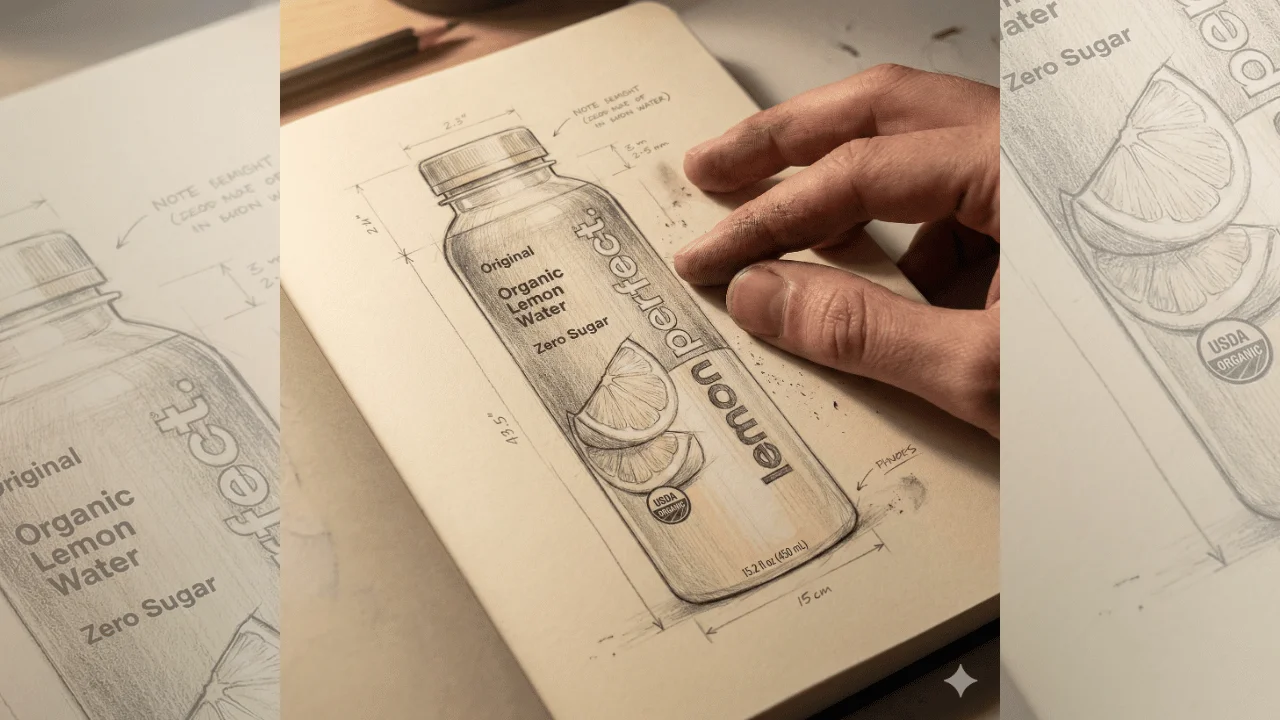
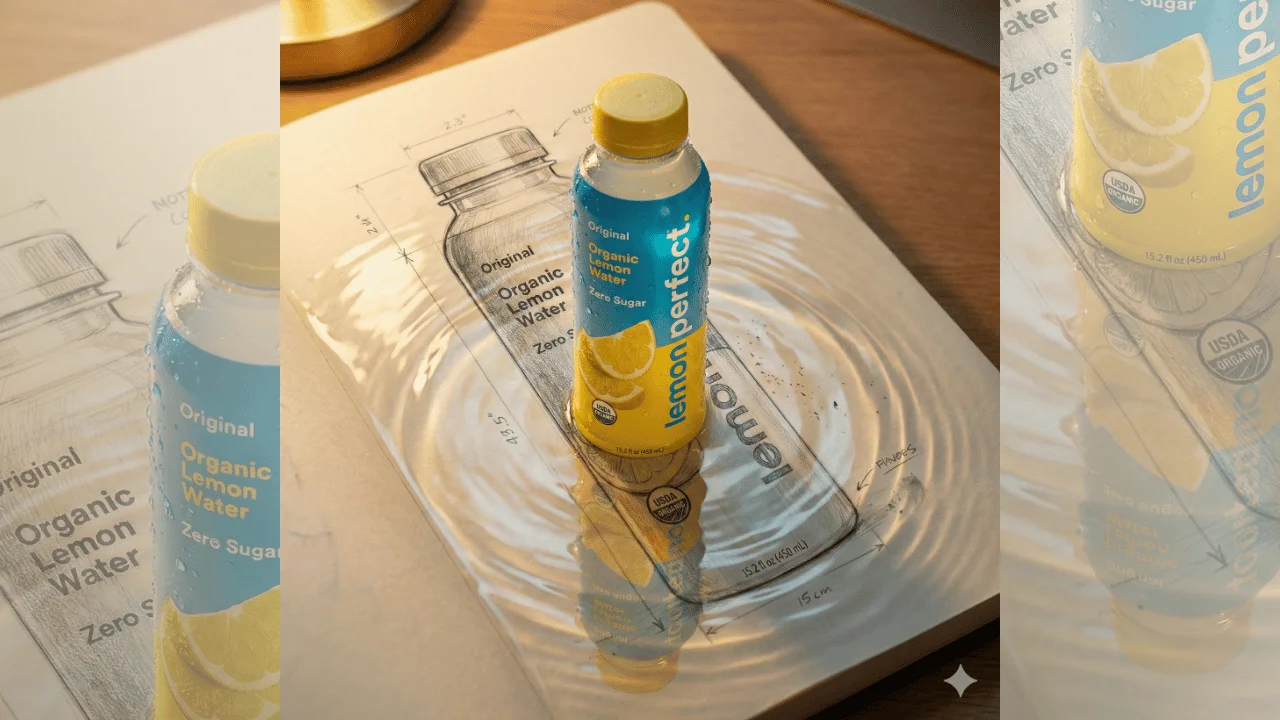
Handcrafted Product Concept Prompt
Advertisement