Loading elite prompt experience...
Example Output
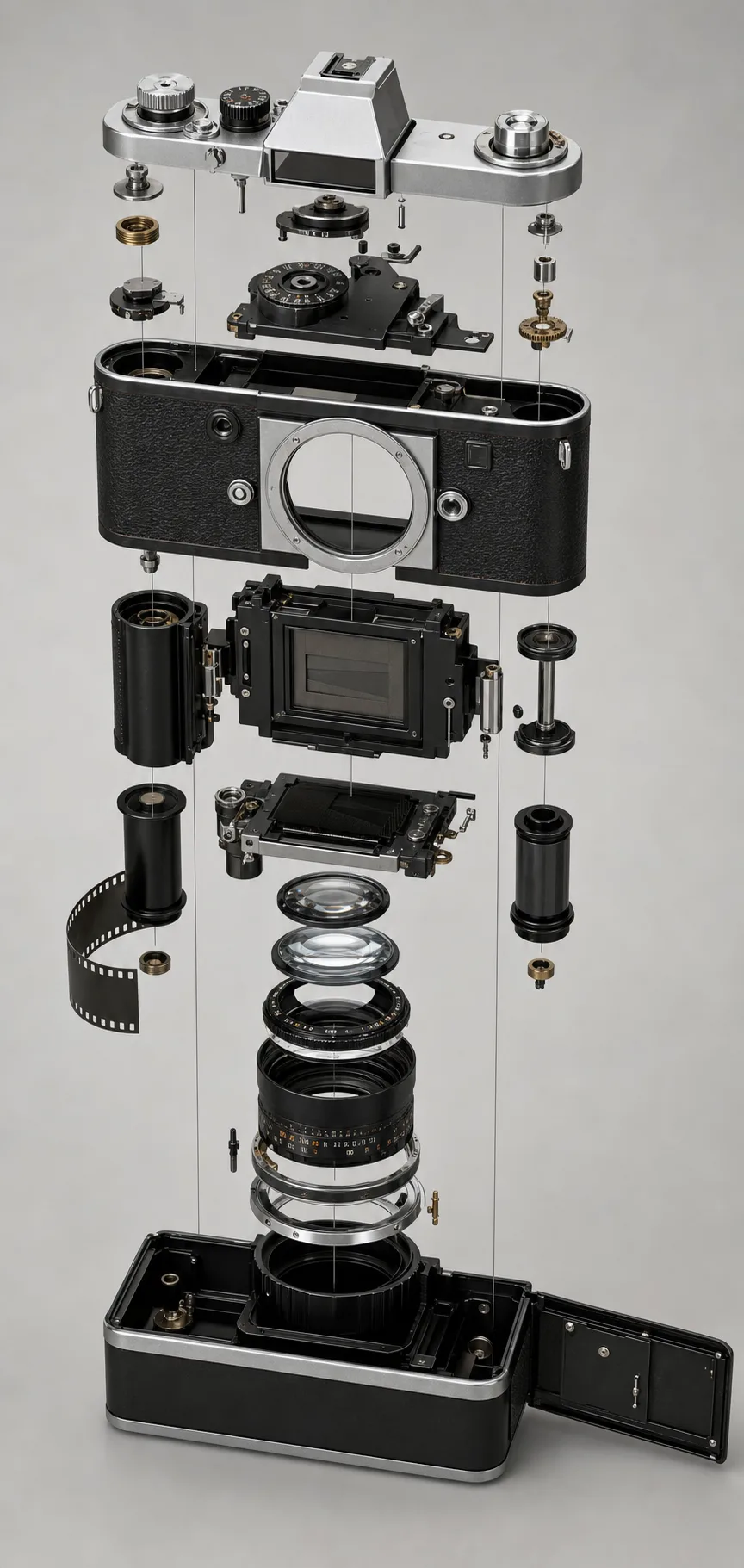 Open in Gallery
Loading elite prompt experience...
A curated stack for turning ideas into production-ready video, ads, and art.
Open in GalleryAn exploded view AI prompt that disassembles any product photo into a floating-parts diagram — four styles from studio render to blueprint.
Upload a photo of almost anything — a camera, sneaker, watch, headphone, coffee machine, even a burger — and the template separates it into its genuine components along a clean axis. Every part keeps the original's exact materials and finish, with the even spacing and alignment guides that make real industrial-design presentations read as engineered rather than scattered.
Product designers and engineers presenting concepts, e-commerce brands making scroll-stopping product posts, tech reviewers and teardown channels, portfolio pieces, and educators explaining how things work.
A clear, well-lit photo of a single object — its exact design, materials and colors are preserved across every exploded part.
Click the "Copy" button above to copy the complete prompt text to your clipboard. This will copy all the text including any placeholders.
If you see placeholders like {{topic}} or {{style}} in the prompt, click "Customize & Use" to open the customization dialog. Fill in your specific values to personalize the prompt for your needs.
This prompt requires 1 attachment: "Reference Image" (image). Have these files ready before proceeding to the AI tool.
Go to gemini.google.com and sign in to your Google account. Make sure you have access to the image generation feature.
In Gemini, look for the "Create image" or image generation option. If available, switch to Gemini Pro or Advanced mode for higher quality outputs.
Before or along with your prompt, upload the required files. Required: Reference Image. Most AI tools have an attachment/upload button near the prompt input area.
Paste the copied prompt (Ctrl/Cmd + V) into the AI tool's text input field. Make sure your attachments are uploaded, then click the send/generate button to create your image.
Review the generated image. If it doesn't match your expectations, try regenerating or adjusting the prompt with more specific details. Most AI tools allow multiple generation attempts.
A clear, well-lit photo of a single object — its exact design, materials and colors are preserved across every exploded part.
Generate with
prompt auto-copiesAffiliate links · We may earn a commission at no cost to you
Tested by the PromptsRush team
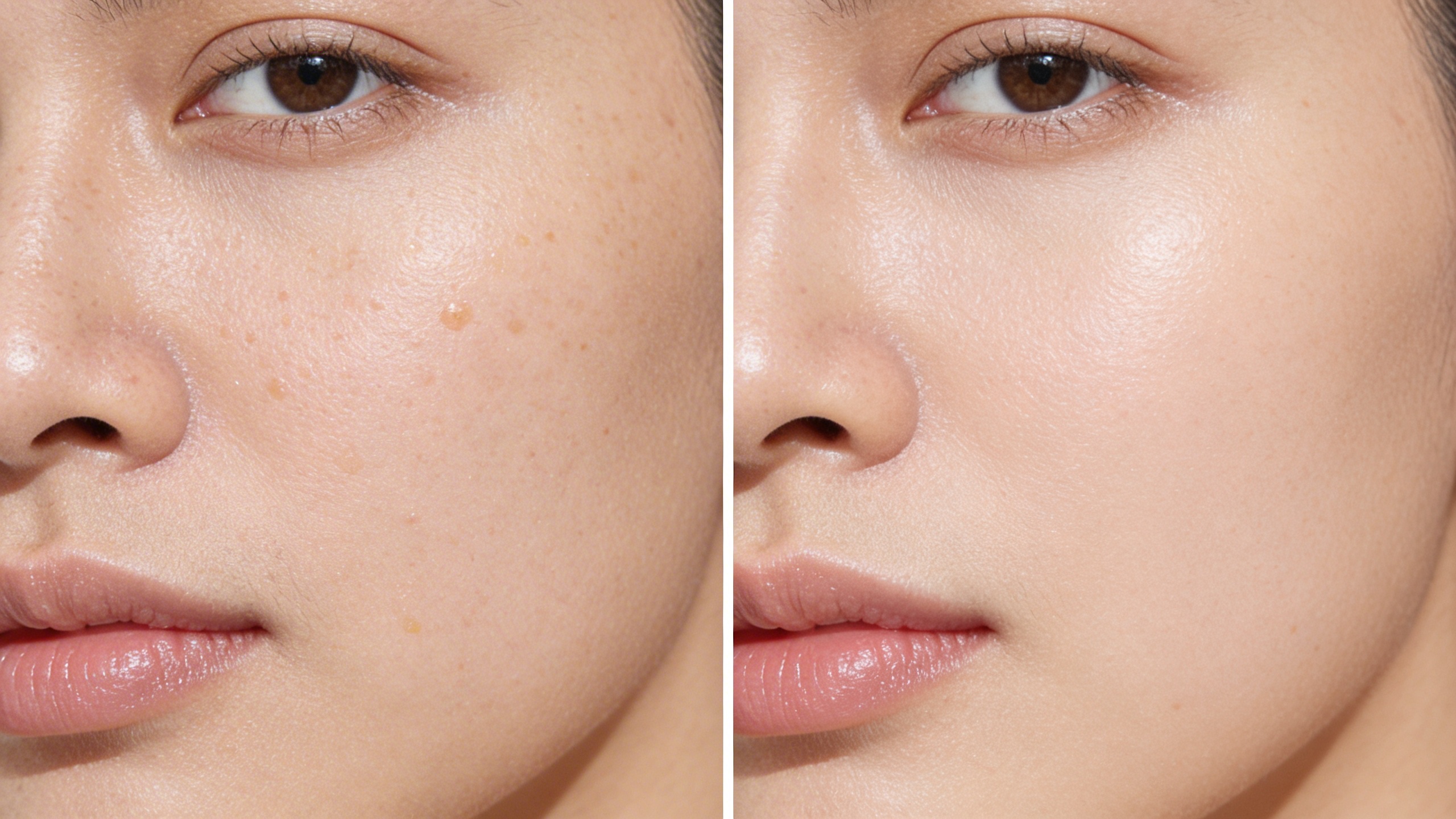
Pore Refinement Comparison – Clinical Before & After Close-Up
Advertisement