Loading elite prompt experience...
Example Output
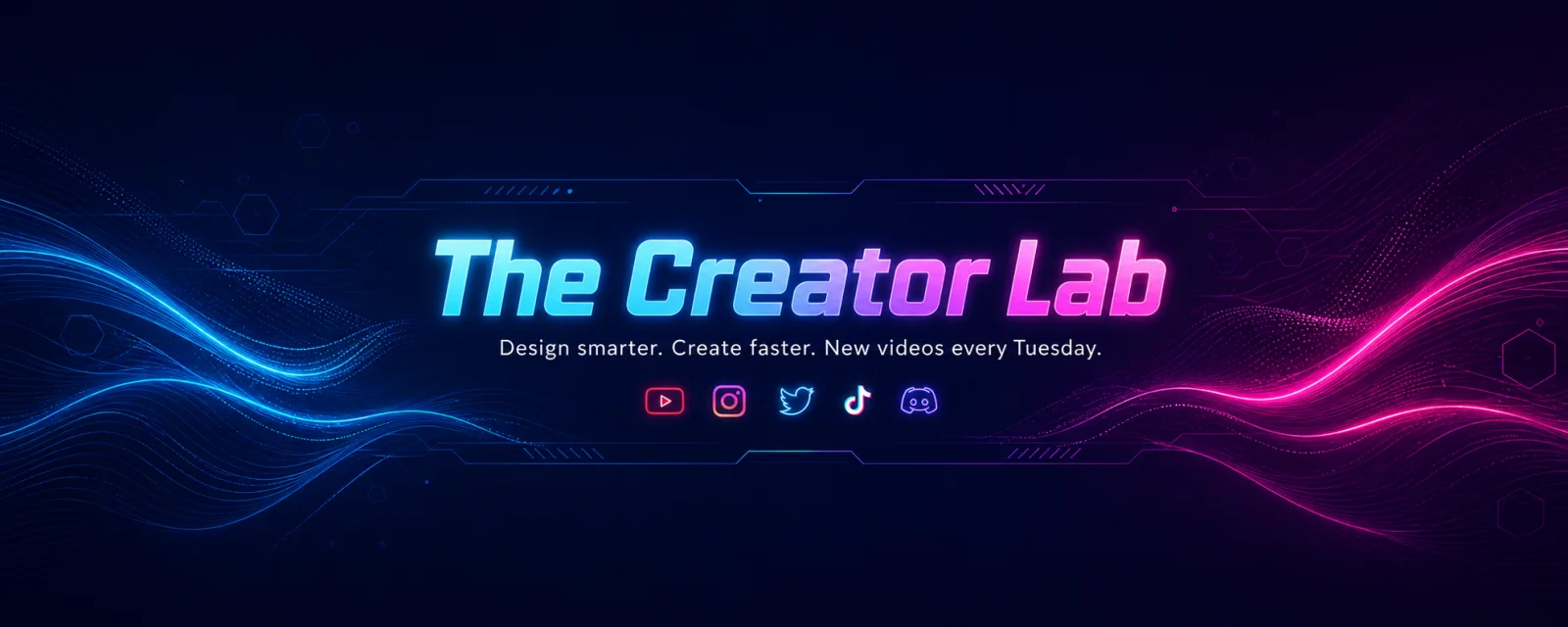 Open in Gallery
Loading elite prompt experience...
A curated stack for turning ideas into production-ready video, ads, and art.
Open in GalleryA YouTube channel art prompt that designs premium 2560×1440 banners with your channel name locked to the safe area — five styles from neon to minimal.
The template solves the mistake that ruins most channel banners: YouTube crops the same artwork differently on TV, desktop and mobile, and only the centered 1546×423 safe band is visible everywhere. This prompt locks your channel name, tagline and social-icon row inside that band and pushes pure ambient design to the outer canvas, with vector-sharp typography and balanced negative space.
The prompt renders the channel name as oversized hero type, the tagline beneath it and a slim icon row below that, all inside the safe band. The outer areas carry only pattern and design, never text, so nothing important is lost when a device trims the edges.
YouTubers, streamers, podcasters and brands setting up or refreshing a channel: gaming and tech channels, education and tutorial channels, vlogs, and business channels all fit.
Optional — a clear headshot or half-body photo. When attached, the person appears as a clean cutout inside the safe band; leave empty for a pure typographic banner.
Click the "Copy" button above to copy the complete prompt text to your clipboard. This will copy all the text including any placeholders.
If you see placeholders like {{topic}} or {{style}} in the prompt, click "Customize & Use" to open the customization dialog. Fill in your specific values to personalize the prompt for your needs.
Optional: "Reference Photo (optional)" (image). Have these files ready before proceeding to the AI tool.
Go to gemini.google.com and sign in to your Google account. Make sure you have access to the image generation feature.
In Gemini, look for the "Create image" or image generation option. If available, switch to Gemini Pro or Advanced mode for higher quality outputs.
Before or along with your prompt, upload the required files. Most AI tools have an attachment/upload button near the prompt input area.
Paste the copied prompt (Ctrl/Cmd + V) into the AI tool's text input field. Make sure your attachments are uploaded, then click the send/generate button to create your image.
Review the generated image. If it doesn't match your expectations, try regenerating or adjusting the prompt with more specific details. Most AI tools allow multiple generation attempts.
Optional — a clear headshot or half-body photo. When attached, the person appears as a clean cutout inside the safe band; leave empty for a pure typographic banner.
Generate with
prompt auto-copiesAffiliate links · We may earn a commission at no cost to you
Tested by the PromptsRush team
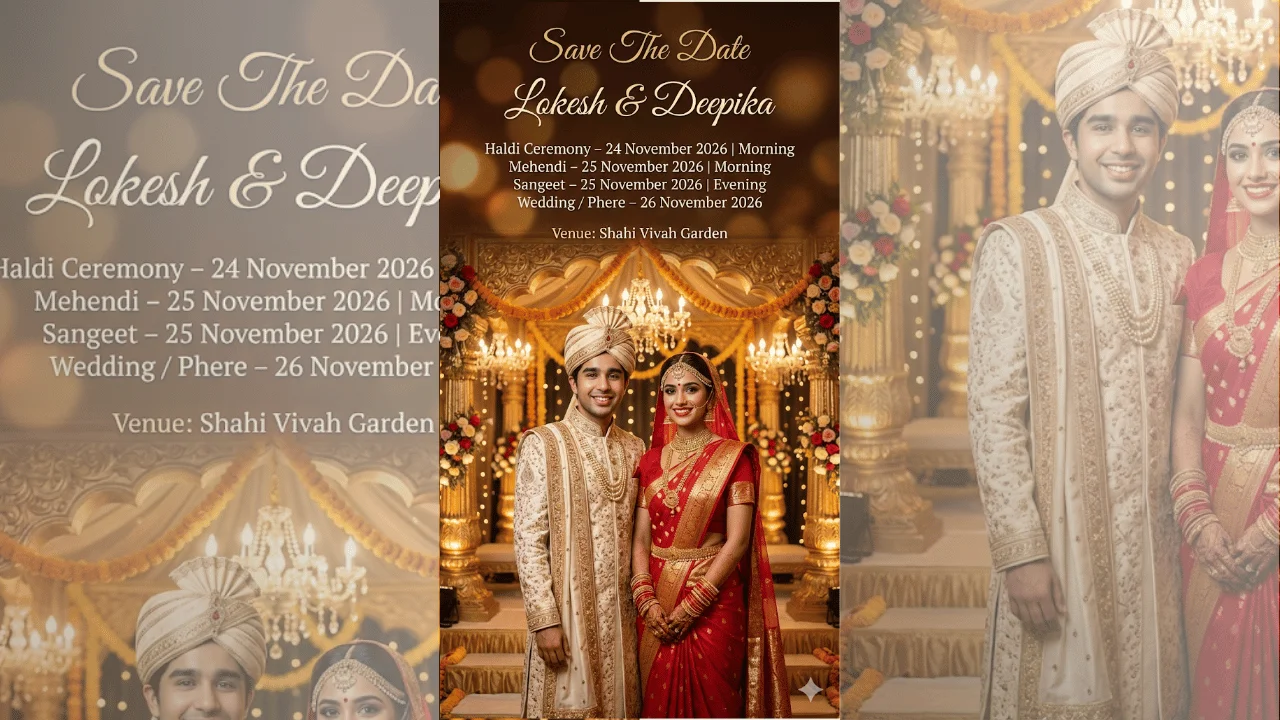
Indian Wedding Save The Date Poster
Advertisement