Loading elite prompt experience...
Example Output
 Open in Gallery
Loading elite prompt experience...
A curated stack for turning ideas into production-ready video, ads, and art.
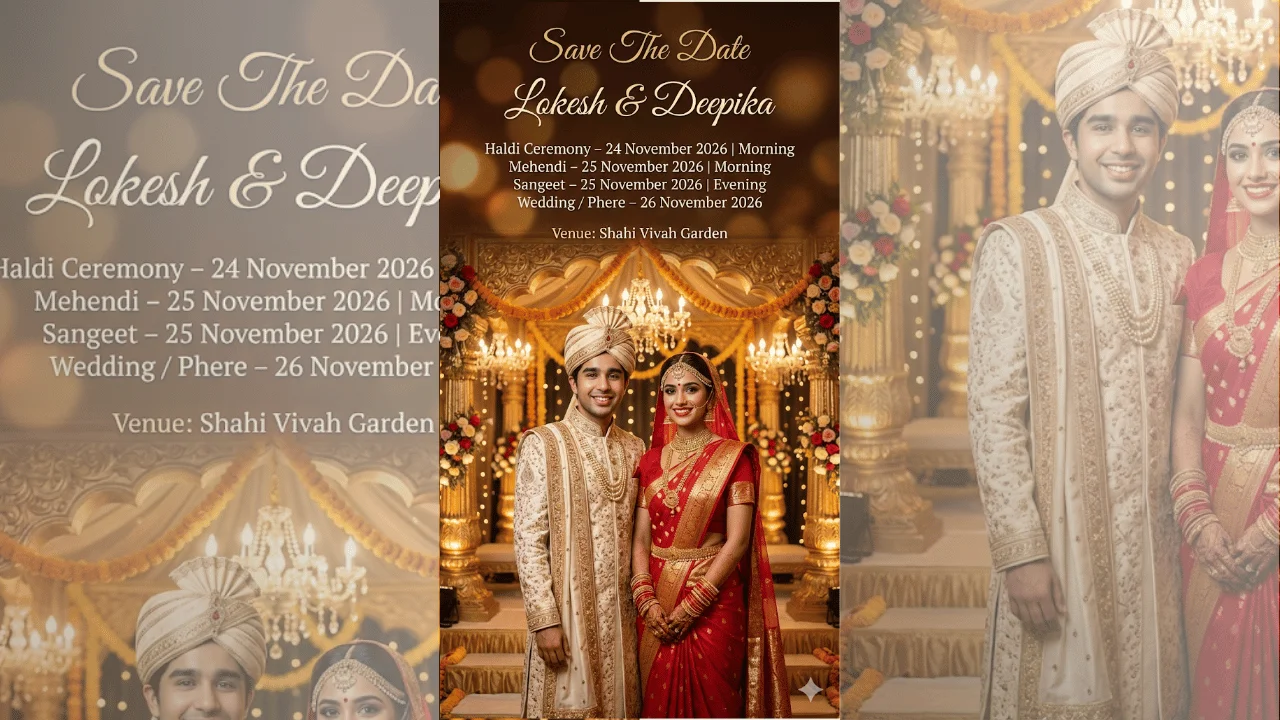
Open in GalleryThis template creates a realistic, premium Indian “Save The Date” wedding invitation poster in a rich red, gold, and cream palette.
It combines cinematic wedding photography with formal invitation design in a vertical 9:16 frame. The couple stands side by side facing the camera with warm, genuine smiles: the groom in a cream sherwani with golden embroidery, the bride in a red bridal saree with gold borders, bangles and maang tikka, in front of a golden mandap-style stage with roses, marigold garlands, chandeliers, fairy lights and soft golden bokeh.
Facial identity is strictly locked to the uploaded reference for both bride and groom: no stylization, beauty filters or facial reshaping, so the couple stays natural and clearly recognizable. The calligraphy-style text sits in a clean top section, separated from the couple with enough empty space and contrast, so names, dates and venue can be changed later without disturbing the composition.
Digital invites, WhatsApp sharing, Instagram stories and vertical prints. It suits couples announcing a multi-day celebration and photographers or designers producing quick previews for clients.
Defines exact facial identity, expressions, and skin tones for both bride and groom.
Click the "Copy" button above to copy the complete prompt text to your clipboard. This will copy all the text including any placeholders.
If you see placeholders like {{topic}} or {{style}} in the prompt, click "Customize & Use" to open the customization dialog. Fill in your specific values to personalize the prompt for your needs.
Optional: "Couple Reference Image" (image). Have these files ready before proceeding to the AI tool.
Go to gemini.google.com and sign in to your Google account. Make sure you have access to the image generation feature.
In Gemini, look for the "Create image" or image generation option. If available, switch to Gemini Pro or Advanced mode for higher quality outputs.
Before or along with your prompt, upload the required files. Most AI tools have an attachment/upload button near the prompt input area.
Paste the copied prompt (Ctrl/Cmd + V) into the AI tool's text input field. Make sure your attachments are uploaded, then click the send/generate button to create your image.
Review the generated image. If it doesn't match your expectations, try regenerating or adjusting the prompt with more specific details. Most AI tools allow multiple generation attempts.
Defines exact facial identity, expressions, and skin tones for both bride and groom.
Generate with
prompt auto-copiesAffiliate links · We may earn a commission at no cost to you
Tested by the PromptsRush team
Birthday Poster with Name Prompt
Advertisement