Loading elite prompt experience...
Example Output
 Open in Gallery
Loading elite prompt experience...
A curated stack for turning ideas into production-ready video, ads, and art.
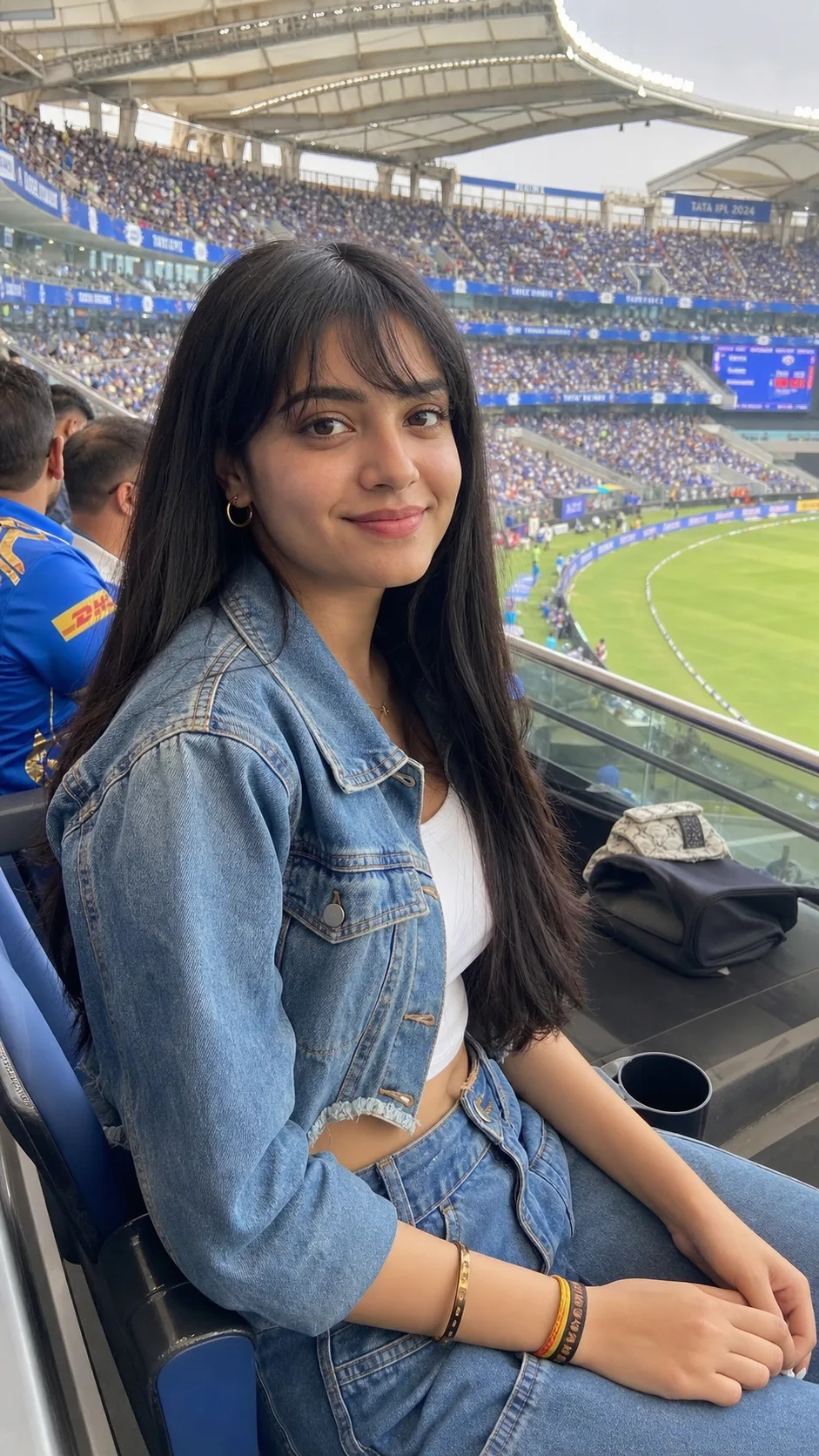
Open in GalleryA stadium photo AI prompt for match-day candids — you in the stands with thousands of blurred fans behind, from IPL cricket to concerts and F1.
The template captures the spotted at the event aesthetic: a relaxed, effortlessly styled subject in premium seats while a packed venue hums in creamy bokeh behind them. Everything is rendered as a candid phone photo shot by a friend, with true-to-life color and unfiltered skin rather than studio polish.
Instagram and matchday content — event recap carousels, day-at-the-stadium reels covers, fan-page posts, and profile refreshes that say you were there.
Optional — attach a clear photo to keep your exact face and hairstyle while the event scene styles around you.
Click the "Copy" button above to copy the complete prompt text to your clipboard. This will copy all the text including any placeholders.
If you see placeholders like {{topic}} or {{style}} in the prompt, click "Customize & Use" to open the customization dialog. Fill in your specific values to personalize the prompt for your needs.
Optional: "Reference Photo (optional)" (image). Have these files ready before proceeding to the AI tool.
Go to gemini.google.com and sign in to your Google account. Make sure you have access to the image generation feature.
In Gemini, look for the "Create image" or image generation option. If available, switch to Gemini Pro or Advanced mode for higher quality outputs.
Before or along with your prompt, upload the required files. Most AI tools have an attachment/upload button near the prompt input area.
Paste the copied prompt (Ctrl/Cmd + V) into the AI tool's text input field. Make sure your attachments are uploaded, then click the send/generate button to create your image.
Review the generated image. If it doesn't match your expectations, try regenerating or adjusting the prompt with more specific details. Most AI tools allow multiple generation attempts.
Optional — attach a clear photo to keep your exact face and hairstyle while the event scene styles around you.
Generate with
prompt auto-copiesAffiliate links · We may earn a commission at no cost to you
Tested by the PromptsRush team
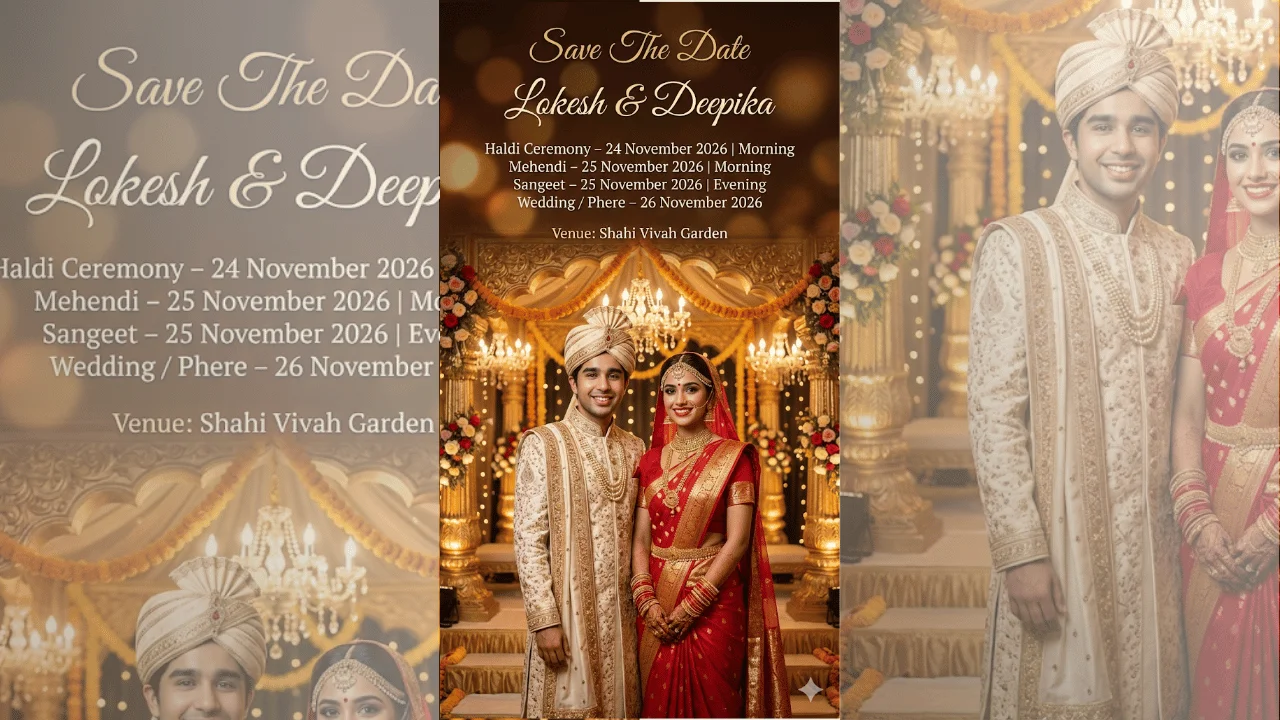
Indian Wedding Save The Date Poster
Advertisement