Loading elite prompt experience...
Example Output
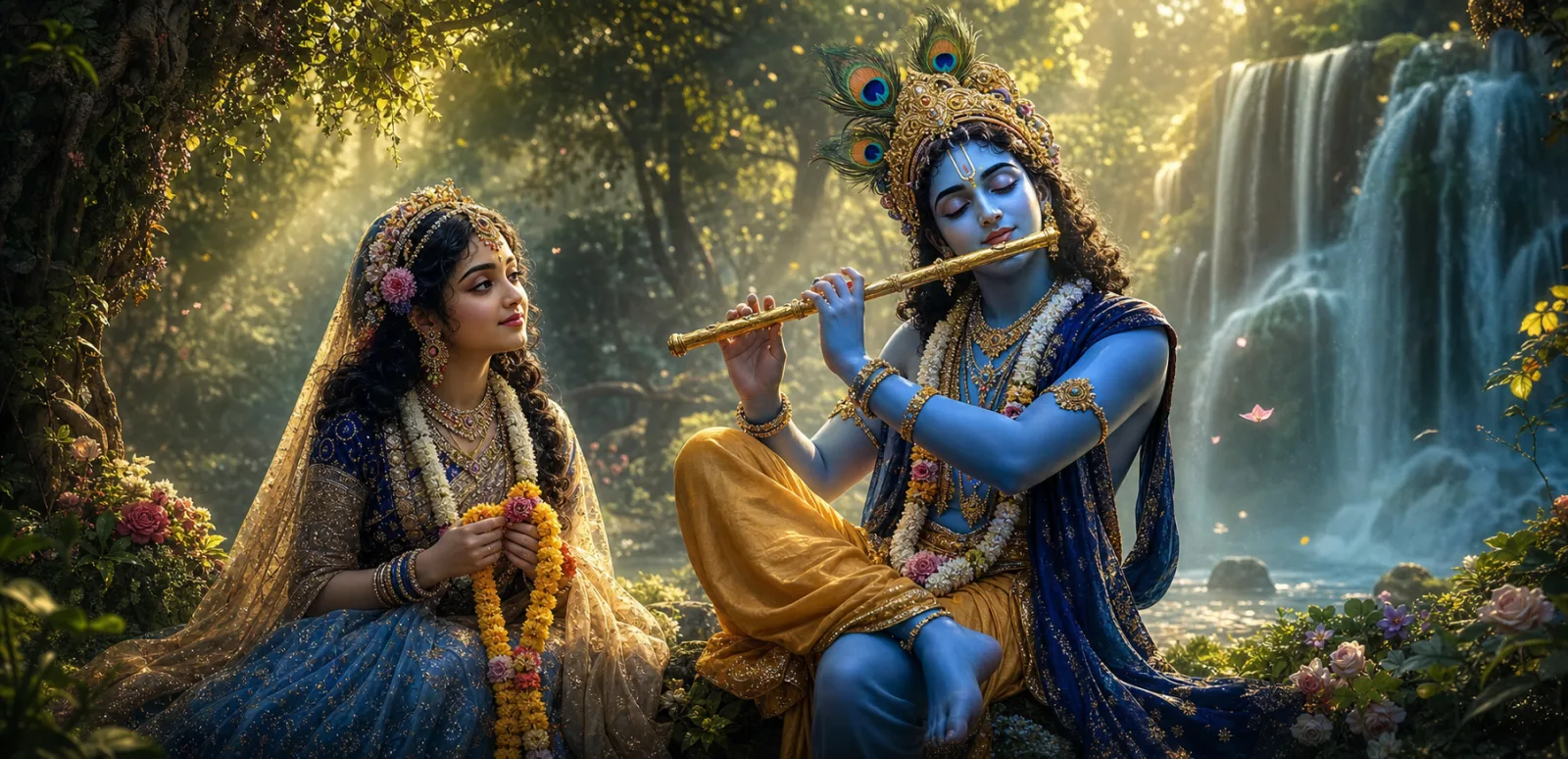 Open in Gallery
Loading elite prompt experience...
A curated stack for turning ideas into production-ready video, ads, and art.
Open in GalleryA Radha Krishna AI art prompt that renders the divine couple in luminous devotional detail — sapphire-blue skin, golden god rays, glittering jewelry.
The template produces temple-worthy devotional artwork in a photorealistic fantasy style: Krishna crowned with a golden peacock feather in a royal silk dhoti, Radha in an ornately embroidered saree with floral jewelry woven through her hair, and the whole scene wrapped in a sapphire-and-gold palette with petals drifting through cinematic light. The composition is centered and symmetrical, tuned for the divine pair alone.
The defaults recreate the classic waterfall flute scene.
Devotional and spiritual creators — Janmashtami and Radha Ashtami festival posts, bhajan channel art, spiritual Instagram pages, phone wallpapers, framed prints and temple community content.
Click the "Copy" button above to copy the complete prompt text to your clipboard. This will copy all the text including any placeholders.
If you see placeholders like {{topic}} or {{style}} in the prompt, click "Customize & Use" to open the customization dialog. Fill in your specific values to personalize the prompt for your needs.
Go to gemini.google.com and sign in to your Google account. Make sure you have access to the image generation feature.
In Gemini, look for the "Create image" or image generation option. If available, switch to Gemini Pro or Advanced mode for higher quality outputs.
Paste the copied prompt (Ctrl/Cmd + V) into the AI tool's text input field. click the send/generate button to create your image.
Review the generated image. If it doesn't match your expectations, try regenerating or adjusting the prompt with more specific details. Most AI tools allow multiple generation attempts.
Generate with
prompt auto-copiesAffiliate links · We may earn a commission at no cost to you
Tested by the PromptsRush team
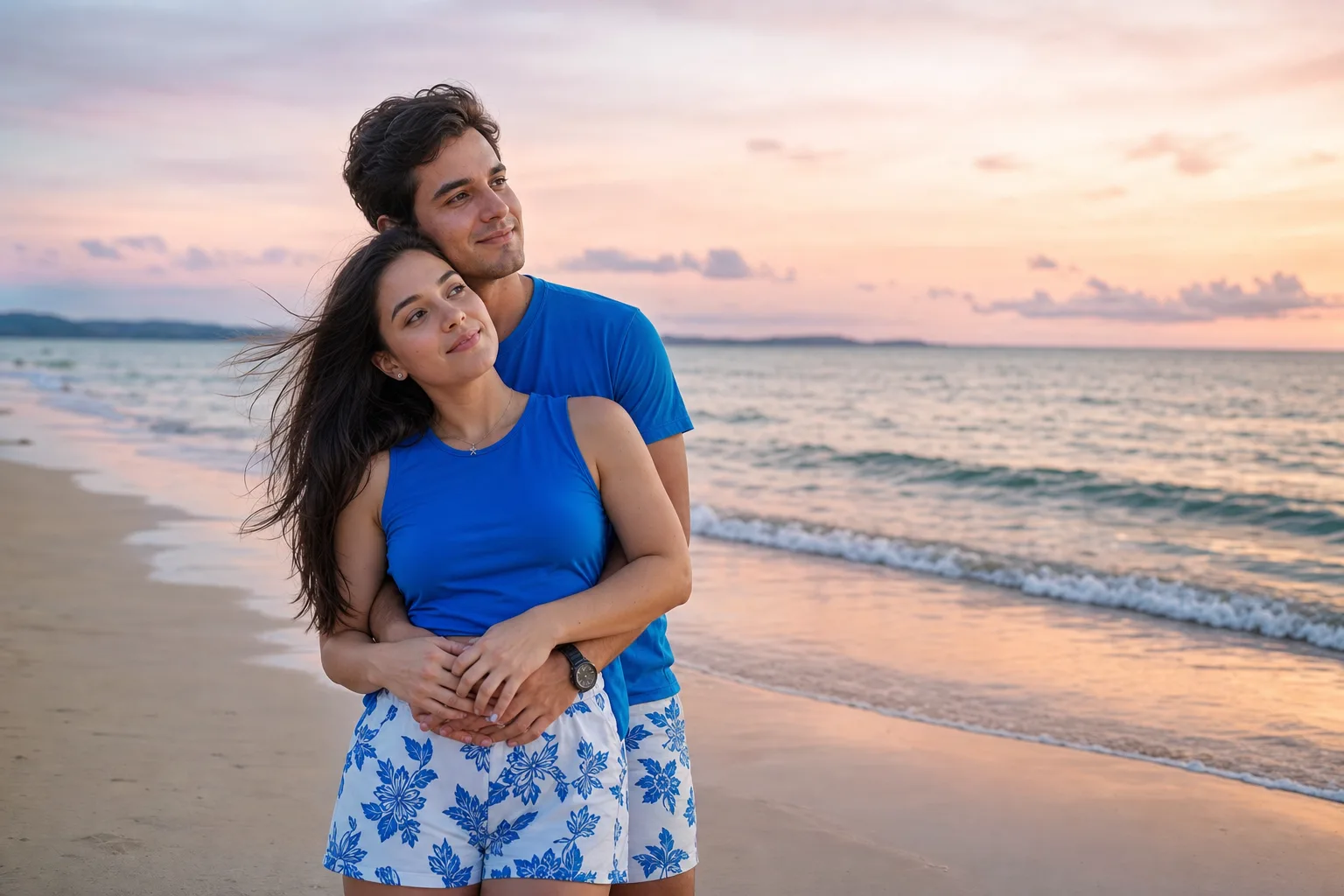
Beach Couple Photoshoot AI Prompt
Advertisement