Loading elite prompt experience...
Example Output
 Open in Gallery
Loading elite prompt experience...
A curated stack for turning ideas into production-ready video, ads, and art.
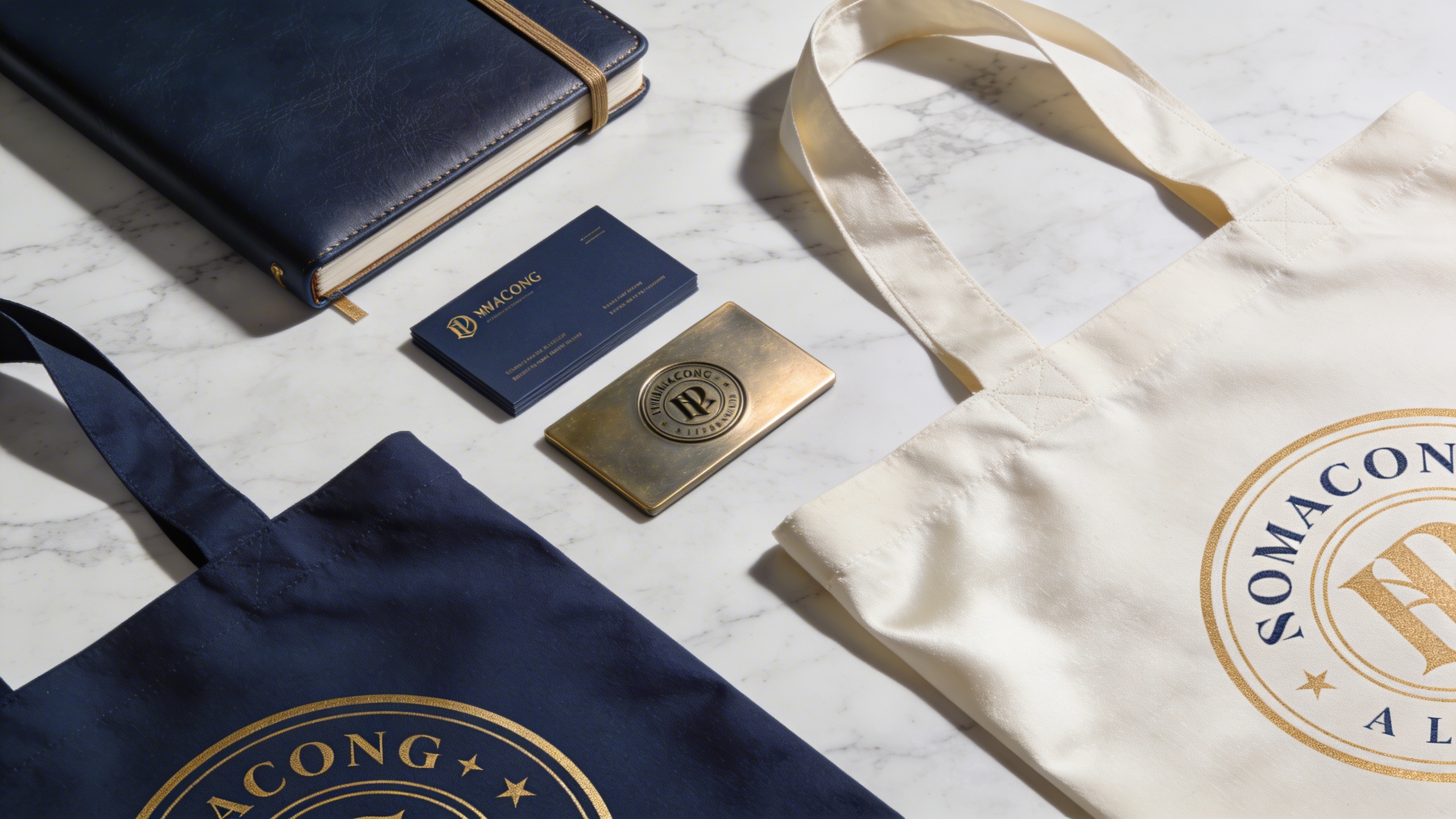
Open in GalleryThis prompt is a brand identity mockup generator, creating photorealistic business cards, letterheads, packaging, and devices on a clean surface.
It stages a premium flat-lay photography mockup with your chosen items arranged neatly on a surface material, the palette tinted by your brand colors, and corporate staging with sharp focus at 8k resolution. The result has the high-ticket, agency-level feel that elevates a pitch without 3D rendering software.
Client presentations, portfolio showcases, and brand guideline documents. Graphic designers, brand strategists, creative directors, and founders can visualize a brand's physical presence before sending anything to print and present it to investors, stakeholders, or customers.
Click the "Copy" button above to copy the complete prompt text to your clipboard. This will copy all the text including any placeholders.
If you see placeholders like {{topic}} or {{style}} in the prompt, click "Customize & Use" to open the customization dialog. Fill in your specific values to personalize the prompt for your needs.
Go to gemini.google.com and sign in to your Google account. Make sure you have access to the image generation feature.
In Gemini, look for the "Create image" or image generation option. If available, switch to Gemini Pro or Advanced mode for higher quality outputs.
Paste the copied prompt (Ctrl/Cmd + V) into the AI tool's text input field. click the send/generate button to create your image.
Review the generated image. If it doesn't match your expectations, try regenerating or adjusting the prompt with more specific details. Most AI tools allow multiple generation attempts.
Generate with
prompt auto-copiesAffiliate links · We may earn a commission at no cost to you
Tested by the PromptsRush team
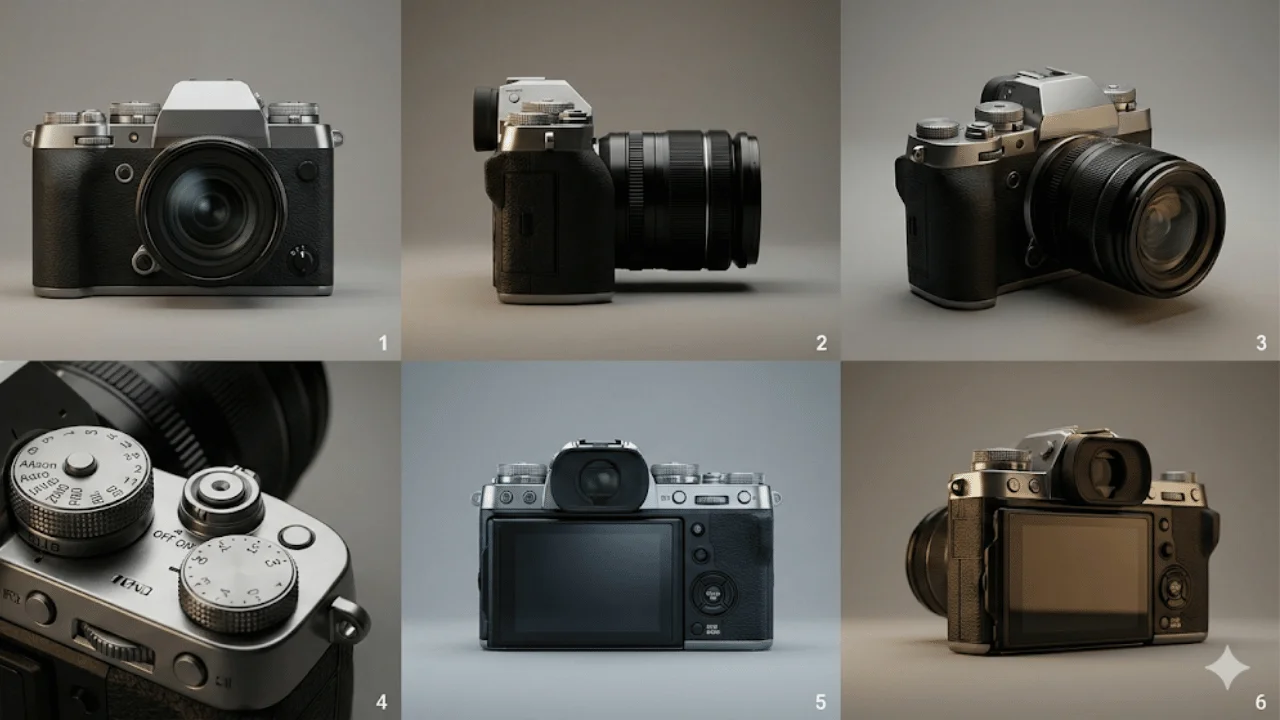
Multishot Product Images - No Influencer
Advertisement