Loading elite prompt experience...
Example Output
 Open in Gallery
Loading elite prompt experience...
A curated stack for turning ideas into production-ready video, ads, and art.
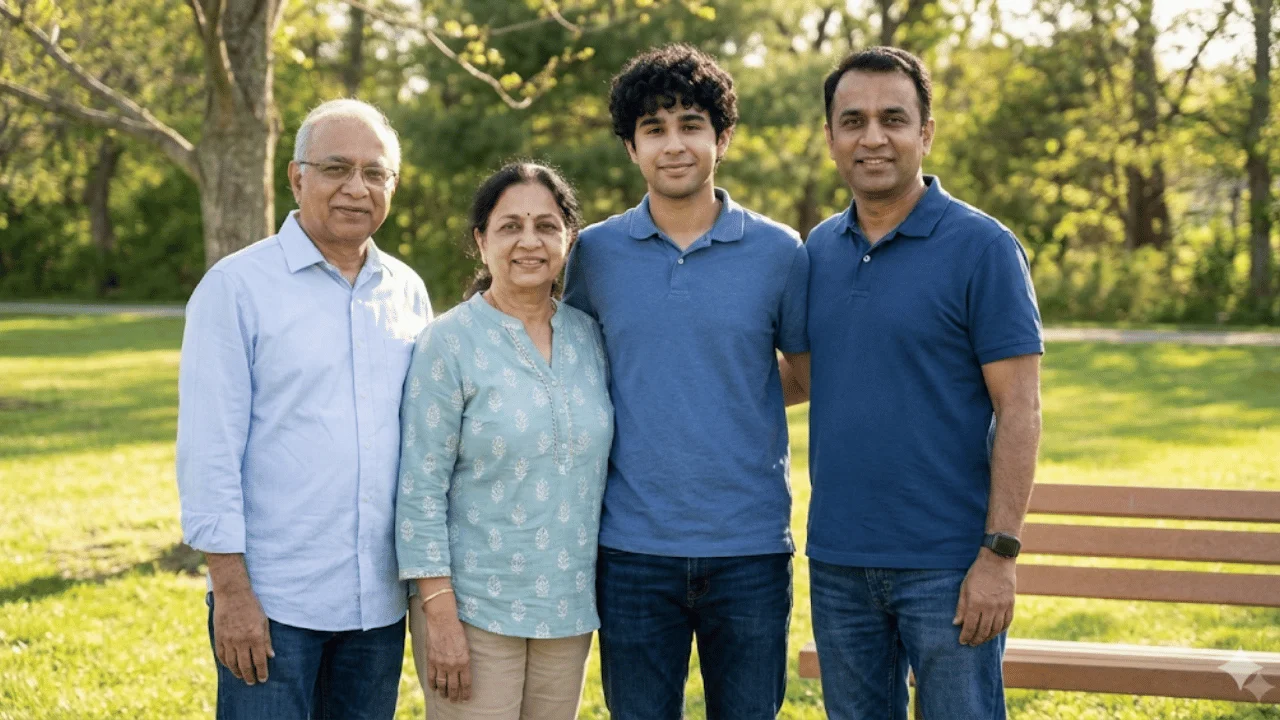
Open in GalleryThis template seamlessly integrates an uploaded individual into an existing family photograph so it looks shot at the same moment with the same camera.
It prioritizes natural realism: matched lighting direction and softness, accurate color tone and white balance, correct perspective and scale, and believable contact and cast shadows. The subject's facial identity stays intact while clothing and placement are adjusted to harmonize with the family's style, formality and setting, with zero visual seams.
Family portraits, missing-member photo restoration, memorial images, or group photo completion where authenticity and emotional credibility are critical.
The base image defining lighting, composition, color tone, and group arrangement.
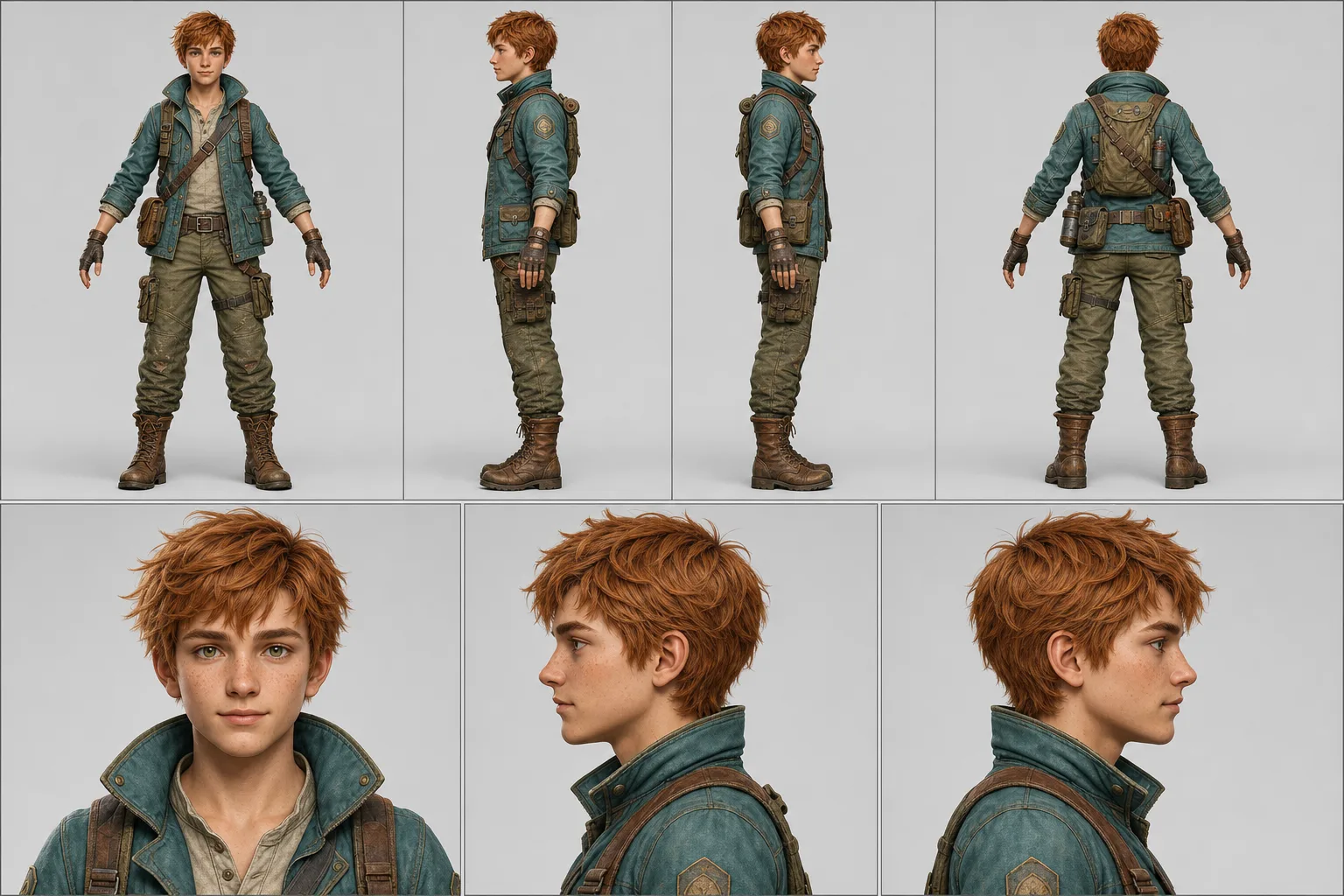
The individual to be seamlessly integrated into the family photo.
Click the "Copy" button above to copy the complete prompt text to your clipboard. This will copy all the text including any placeholders.
Optional: "Family Photo" (image), "Person to Add" (image). Have these files ready before proceeding to the AI tool.
Go to gemini.google.com and sign in to your Google account. Make sure you have access to the image generation feature.
In Gemini, look for the "Create image" or image generation option. If available, switch to Gemini Pro or Advanced mode for higher quality outputs.
Before or along with your prompt, upload the required files. Most AI tools have an attachment/upload button near the prompt input area.
Paste the copied prompt (Ctrl/Cmd + V) into the AI tool's text input field. Make sure your attachments are uploaded, then click the send/generate button to create your image.
Review the generated image. If it doesn't match your expectations, try regenerating or adjusting the prompt with more specific details. Most AI tools allow multiple generation attempts.
The base image defining lighting, composition, color tone, and group arrangement.
The individual to be seamlessly integrated into the family photo.
Generate with
prompt auto-copiesAffiliate links · We may earn a commission at no cost to you
Tested by the PromptsRush team
Beach Couple Photoshoot AI Prompt
Advertisement