Loading elite prompt experience...
Example Output
 Open in Gallery
Loading elite prompt experience...
A curated stack for turning ideas into production-ready video, ads, and art.
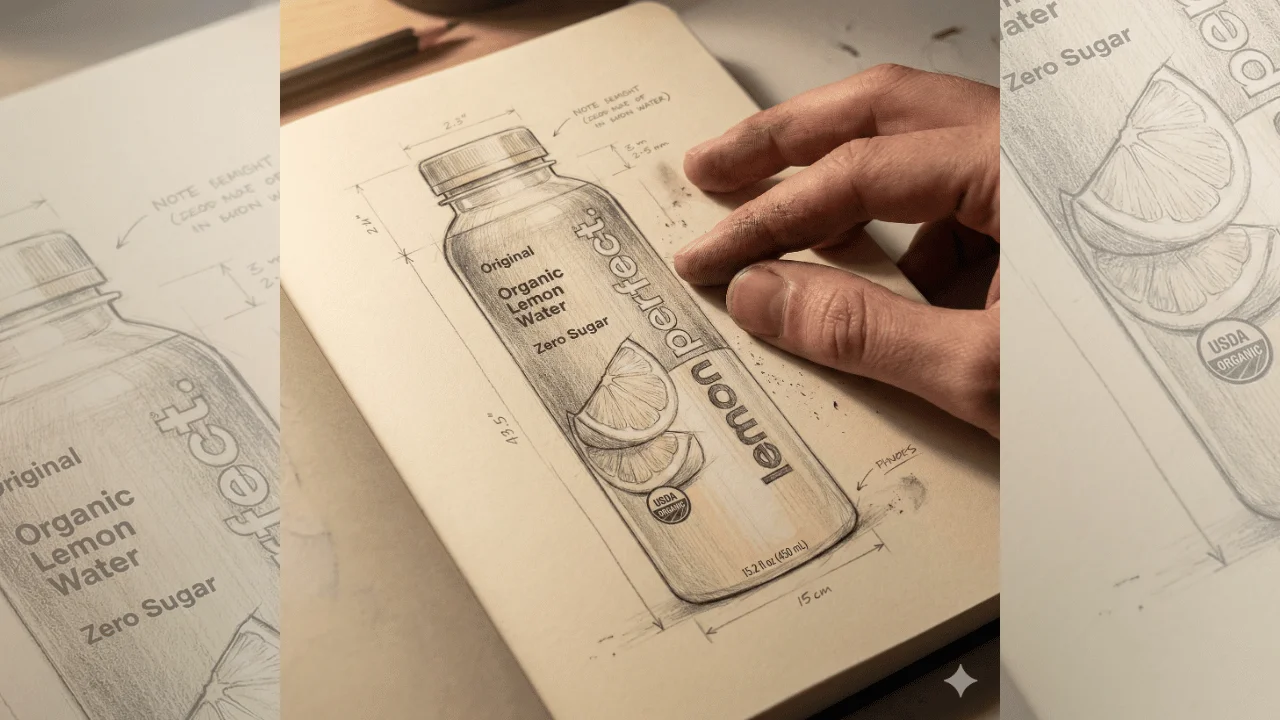
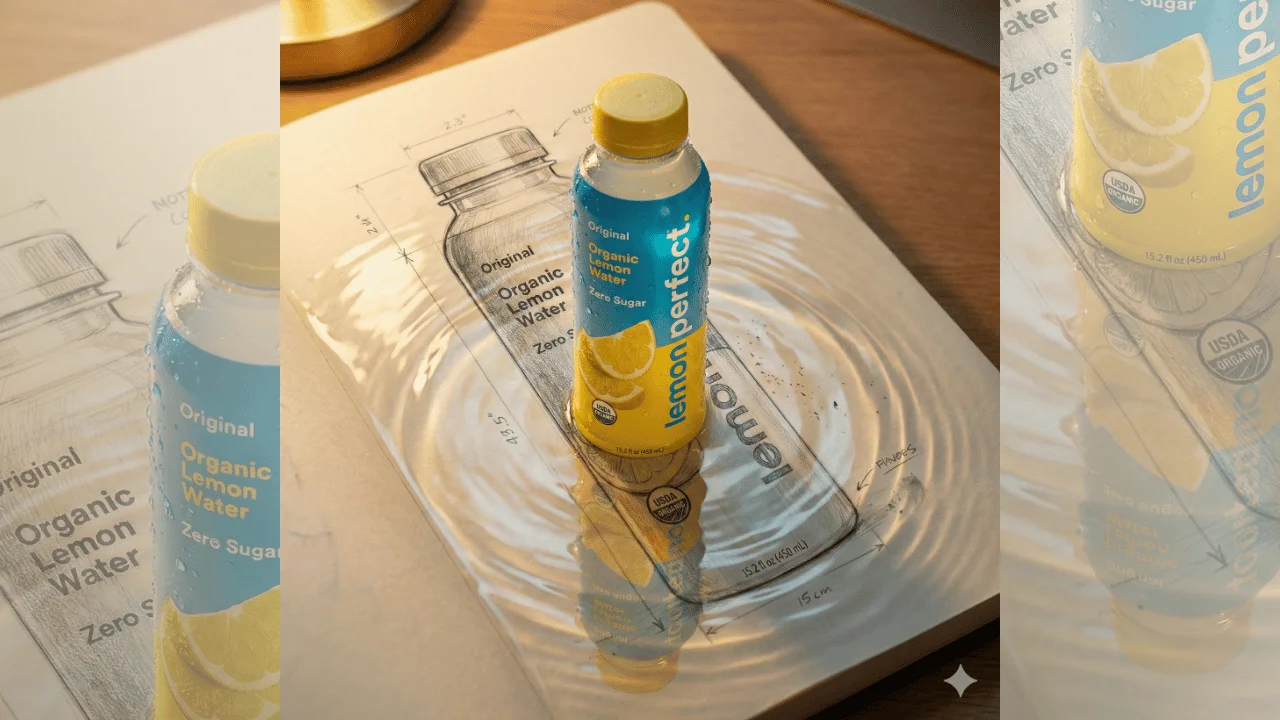
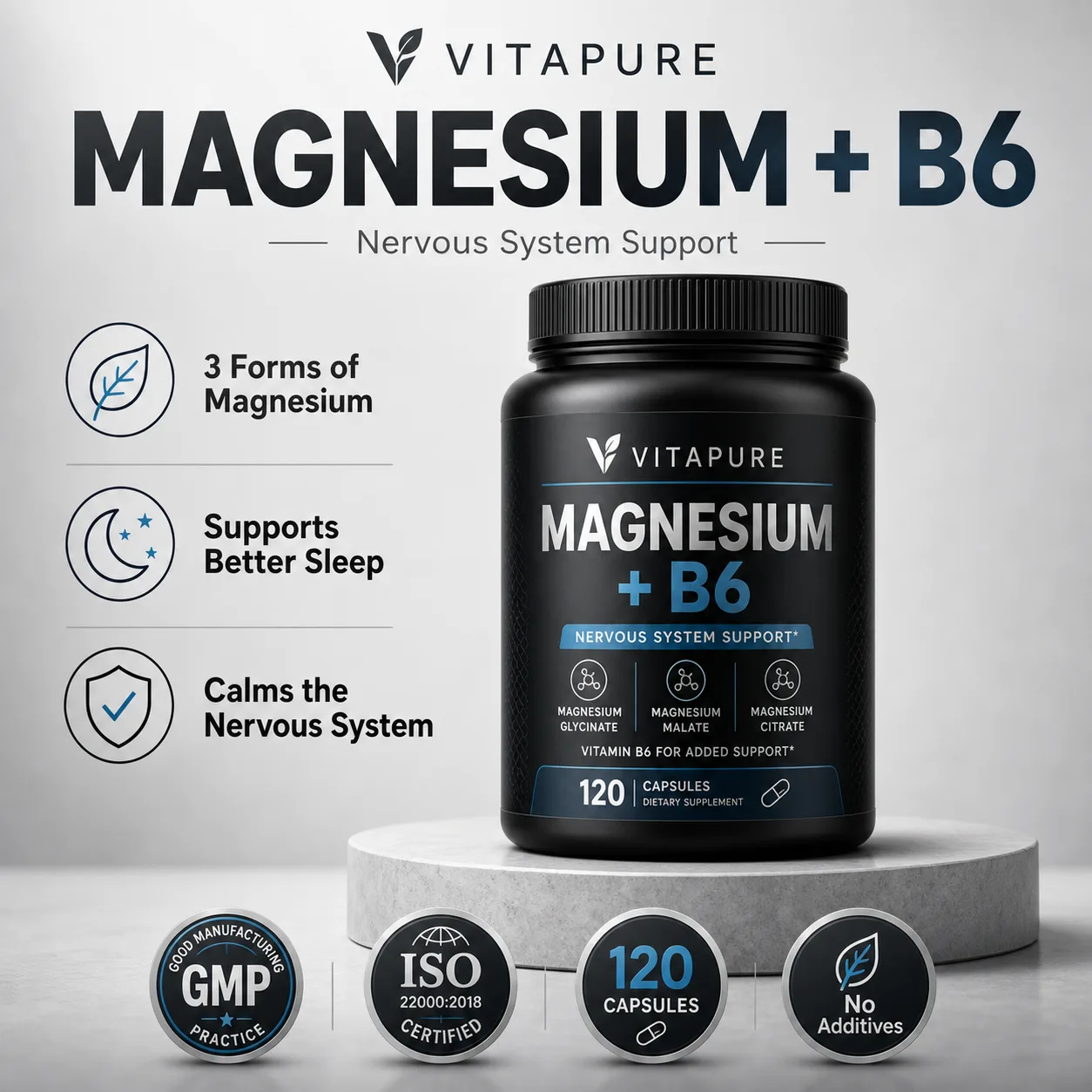
Open in GalleryA supplement product image prompt that designs a complete, high-converting eCommerce listing image in one shot — hero bottle, headline and trust badges.
Set your product name, benefits and packaging and the template renders a marketplace-ready visual: a photoreal bottle or jar as the hero, a strong headline, an icon-led features list and certification badges, composed like a top Amazon or marketplace listing. Packaging, style, palette, benefits layout, badges and background are all selectable, so the same system works for a premium dark jar, a clean white bottle, a natural botanical look or a bold colorful promo.
Supplement and wellness brands, dropshippers, Amazon and marketplace sellers, and agencies that need fast, professional listing images, hero shots and ad creative without a photo studio.
Click the "Copy" button above to copy the complete prompt text to your clipboard. This will copy all the text including any placeholders.
If you see placeholders like {{topic}} or {{style}} in the prompt, click "Customize & Use" to open the customization dialog. Fill in your specific values to personalize the prompt for your needs.
Go to gemini.google.com and sign in to your Google account. Make sure you have access to the image generation feature.
In Gemini, look for the "Create image" or image generation option. If available, switch to Gemini Pro or Advanced mode for higher quality outputs.
Paste the copied prompt (Ctrl/Cmd + V) into the AI tool's text input field. click the send/generate button to create your image.
Review the generated image. If it doesn't match your expectations, try regenerating or adjusting the prompt with more specific details. Most AI tools allow multiple generation attempts.
Generate with
prompt auto-copiesAffiliate links · We may earn a commission at no cost to you
Tested by the PromptsRush team
Handcrafted Product Concept Prompt
Advertisement