Loading elite prompt experience...
Example Output
 Open in Gallery
Loading elite prompt experience...
A curated stack for turning ideas into production-ready video, ads, and art.
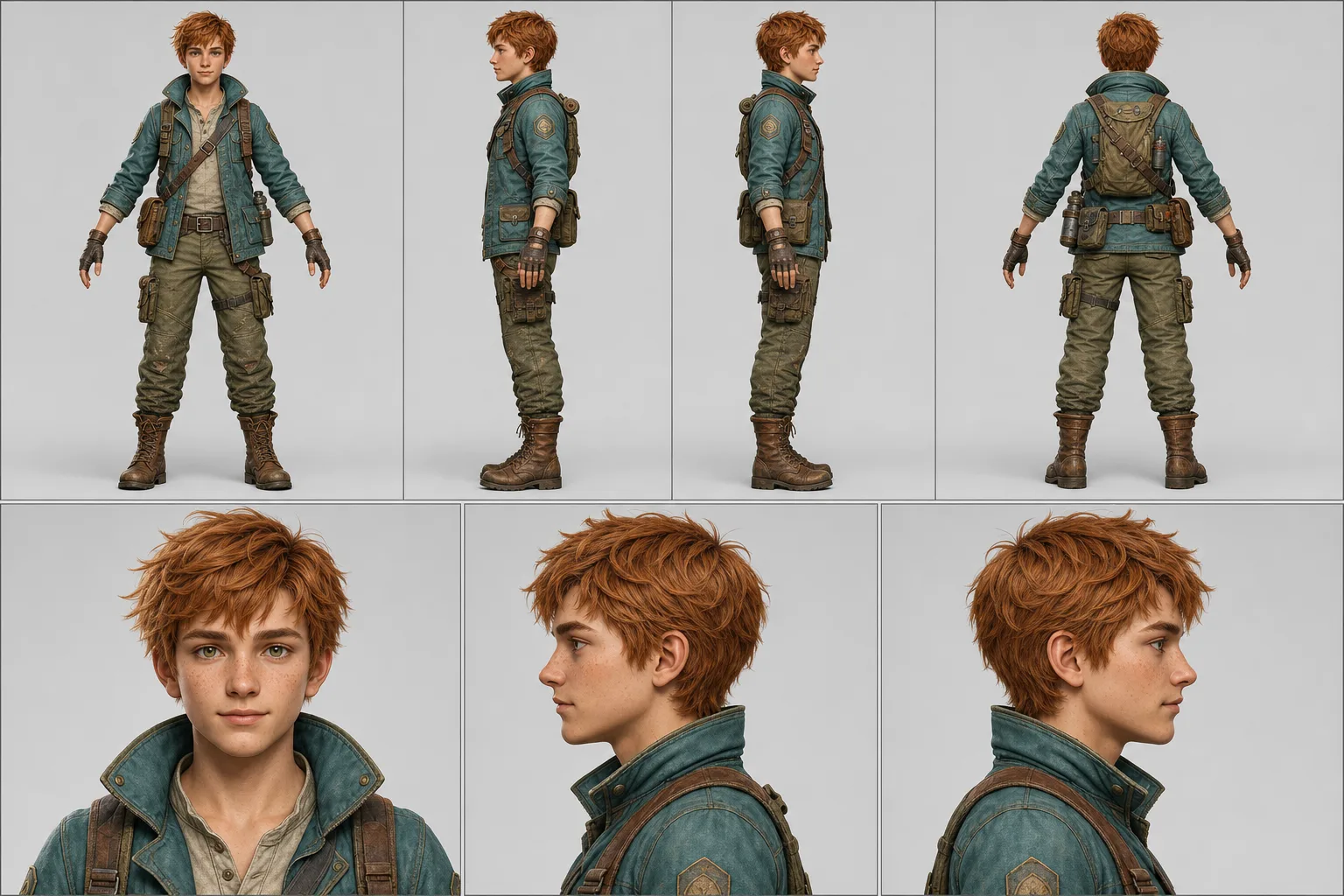
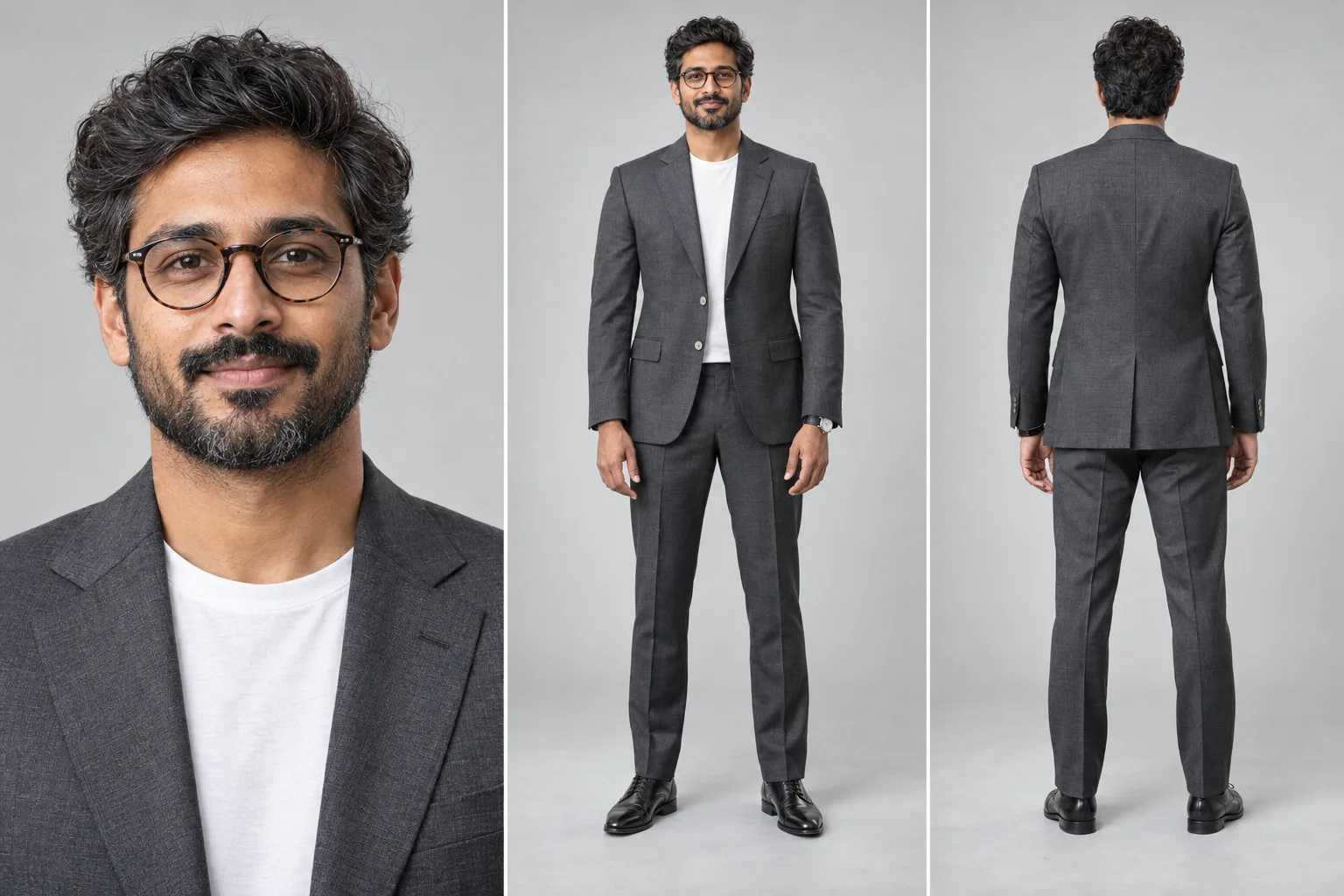
Open in GalleryA character reference sheet prompt that builds a multi-panel studio sheet of one person — close-up, full-body front and back, perfectly consistent.
It produces the sheet artists, studios and brand teams actually use: equal side-by-side panels on one seamless backdrop, the same face, wardrobe and proportions in every view, and the rear panel showing real back tailoring rather than a mirrored copy of the front.
Multi-view sheets usually fail by producing three similar-looking strangers. The prompt names consistency as its most important requirement — identity, age, hair, glasses, proportions, fabric and accessories locked across panels, all views on one baseline at matching scale — and bans the specific drift modes that ruin a sheet.
Character design and concept art, game and animation asset references, brand and founder photo kits, actor and model comp cards, tailoring and lookbook mockups, and keeping one character consistent across a series.
Optional — attach a clear, front-facing photo to carry a real likeness into every panel. Without one, the sheet is built entirely from the Subject description.
Click the "Copy" button above to copy the complete prompt text to your clipboard. This will copy all the text including any placeholders.
If you see placeholders like {{topic}} or {{style}} in the prompt, click "Customize & Use" to open the customization dialog. Fill in your specific values to personalize the prompt for your needs.
Optional: "Reference Photo" (image). Have these files ready before proceeding to the AI tool.
Go to gemini.google.com and sign in to your Google account. Make sure you have access to the image generation feature.
In Gemini, look for the "Create image" or image generation option. If available, switch to Gemini Pro or Advanced mode for higher quality outputs.
Before or along with your prompt, upload the required files. Most AI tools have an attachment/upload button near the prompt input area.
Paste the copied prompt (Ctrl/Cmd + V) into the AI tool's text input field. Make sure your attachments are uploaded, then click the send/generate button to create your image.
Review the generated image. If it doesn't match your expectations, try regenerating or adjusting the prompt with more specific details. Most AI tools allow multiple generation attempts.
Optional — attach a clear, front-facing photo to carry a real likeness into every panel. Without one, the sheet is built entirely from the Subject description.
Generate with
prompt auto-copiesAffiliate links · We may earn a commission at no cost to you
Tested by the PromptsRush team
Beach Couple Photoshoot AI Prompt
Advertisement