Loading elite prompt experience...
Example Output
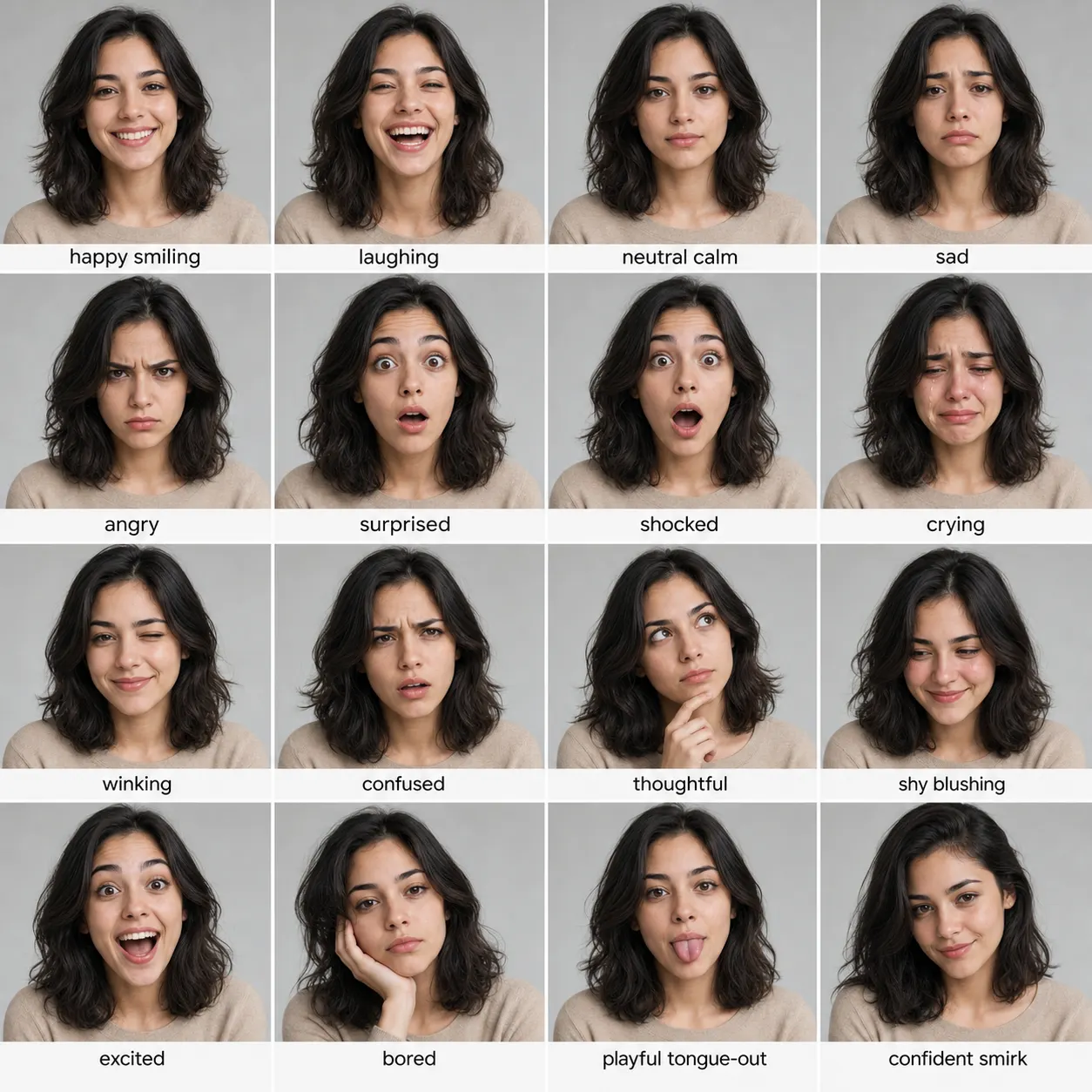 Open in Gallery
Loading elite prompt experience...
A curated stack for turning ideas into production-ready video, ads, and art.
Open in GalleryAn expressions grid prompt that turns one photo into a clean 4x4 sheet of 16 panels — the same person, one emotion per panel, identity locked throughout.
Upload a reference photo and the template renders a consistent expression sheet: happy, sad, angry, surprised and a dozen more, each in its own panel with matching framing and lighting so only the face changes. It is the reference-sheet look creators use for character design, emotion charts, reaction packs and profile-grid posts, generated in a single image.
Character designers and artists who need expression references, streamers and creators making reaction-image sets or sticker packs, and anyone who wants a fun "all my moods" grid of themselves.
Upload one clear front-facing photo — the person is preserved identically across all 16 panels.
Click the "Copy" button above to copy the complete prompt text to your clipboard. This will copy all the text including any placeholders.
If you see placeholders like {{topic}} or {{style}} in the prompt, click "Customize & Use" to open the customization dialog. Fill in your specific values to personalize the prompt for your needs.
Optional: "Reference Photo" (image). Have these files ready before proceeding to the AI tool.
Go to gemini.google.com and sign in to your Google account. Make sure you have access to the image generation feature.
In Gemini, look for the "Create image" or image generation option. If available, switch to Gemini Pro or Advanced mode for higher quality outputs.
Before or along with your prompt, upload the required files. Most AI tools have an attachment/upload button near the prompt input area.
Paste the copied prompt (Ctrl/Cmd + V) into the AI tool's text input field. Make sure your attachments are uploaded, then click the send/generate button to create your image.
Review the generated image. If it doesn't match your expectations, try regenerating or adjusting the prompt with more specific details. Most AI tools allow multiple generation attempts.
Upload one clear front-facing photo — the person is preserved identically across all 16 panels.
Generate with
prompt auto-copiesAffiliate links · We may earn a commission at no cost to you
Tested by the PromptsRush team
Beach Couple Photoshoot AI Prompt
Advertisement