Loading elite prompt experience...
Example Output
 Open in Gallery
Loading elite prompt experience...
A curated stack for turning ideas into production-ready video, ads, and art.
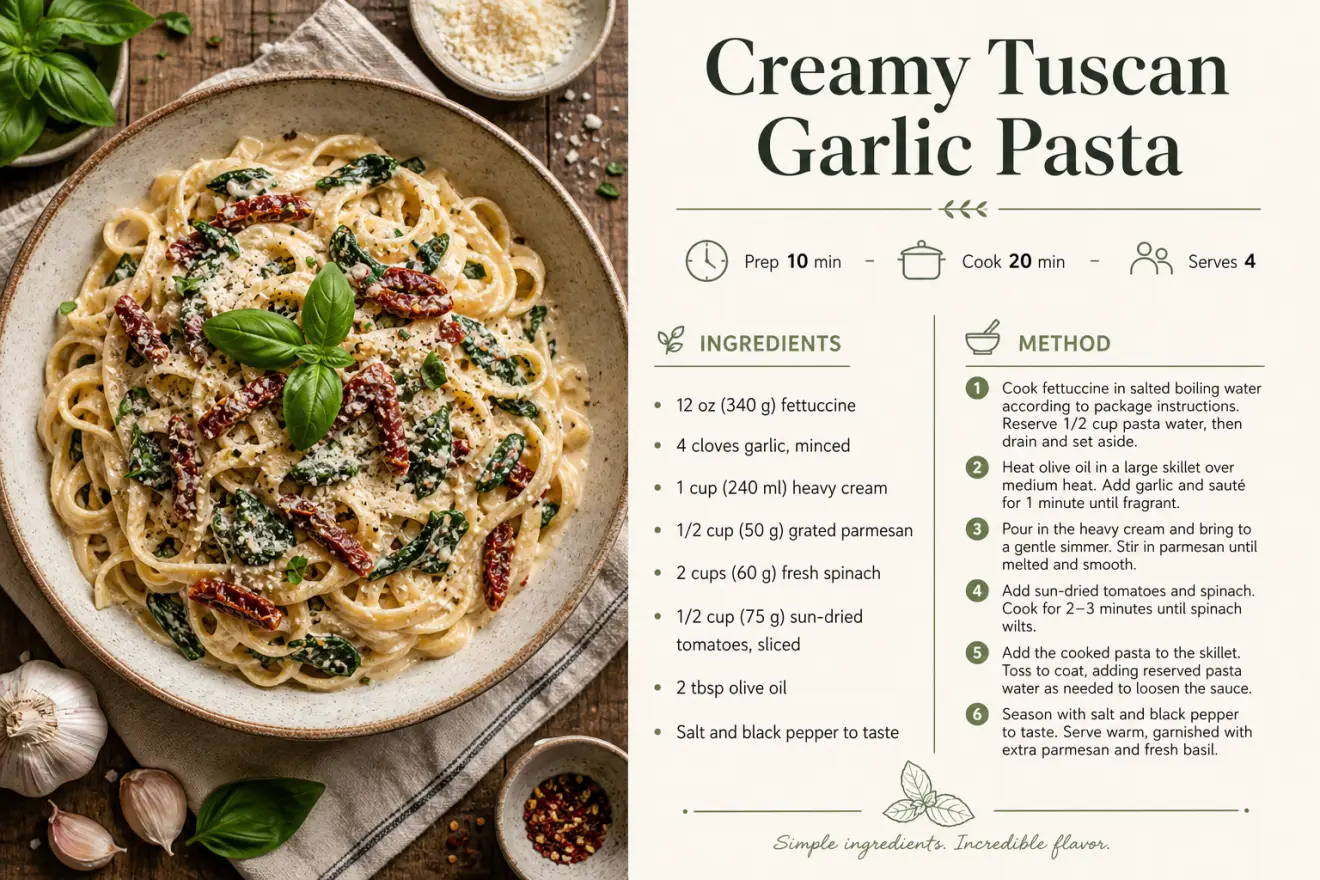
Open in GalleryA recipe card prompt that turns your recipe into a polished, print-ready card — appetizing food photography paired with a clean, professional layout.
Instead of fighting with a design tool, you enter the dish name, ingredients and steps and the template composes a magazine-quality card: a styled hero food photo, an elegant title, an icon meta row for prep, cook and servings, a tidy ingredients list and a numbered method. The same recipe can look modern and minimal, warm and rustic, elegant editorial or bright and playful.
Food bloggers, home cooks, recipe sellers, cafes and creators who want shareable recipe cards, printables, blog graphics, cookbook pages and Pinterest pins without hiring a designer or booking a food shoot.
Optional: upload a photo of your actual dish to use as the food photography on the card.
Click the "Copy" button above to copy the complete prompt text to your clipboard. This will copy all the text including any placeholders.
If you see placeholders like {{topic}} or {{style}} in the prompt, click "Customize & Use" to open the customization dialog. Fill in your specific values to personalize the prompt for your needs.
Optional: "Dish Photo" (image). Have these files ready before proceeding to the AI tool.
Go to gemini.google.com and sign in to your Google account. Make sure you have access to the image generation feature.
In Gemini, look for the "Create image" or image generation option. If available, switch to Gemini Pro or Advanced mode for higher quality outputs.
Before or along with your prompt, upload the required files. Most AI tools have an attachment/upload button near the prompt input area.
Paste the copied prompt (Ctrl/Cmd + V) into the AI tool's text input field. Make sure your attachments are uploaded, then click the send/generate button to create your image.
Review the generated image. If it doesn't match your expectations, try regenerating or adjusting the prompt with more specific details. Most AI tools allow multiple generation attempts.
Optional: upload a photo of your actual dish to use as the food photography on the card.
Generate with
prompt auto-copiesAffiliate links · We may earn a commission at no cost to you
Tested by the PromptsRush team
Macro Food Photography
Advertisement